 Warashi
 is a menu bar app for Macs with Apple silicon running macOS 26 or later. It measures your Mac every few seconds, keeps a small history on your Mac, and turns it into answers.
Install
- Open the Warashi disk image you downloaded.
- Drag Warashi onto the Applications folder.
- Open Warashi from Applications. It's signed and notarized by Apple, so it opens like any other app.
There's no Dock icon while Warashi runs in the background: it lives in the menu bar. While its window is open it also shows in the Dock and ⌘-Tab, so it can't get lost.
The welcome tour
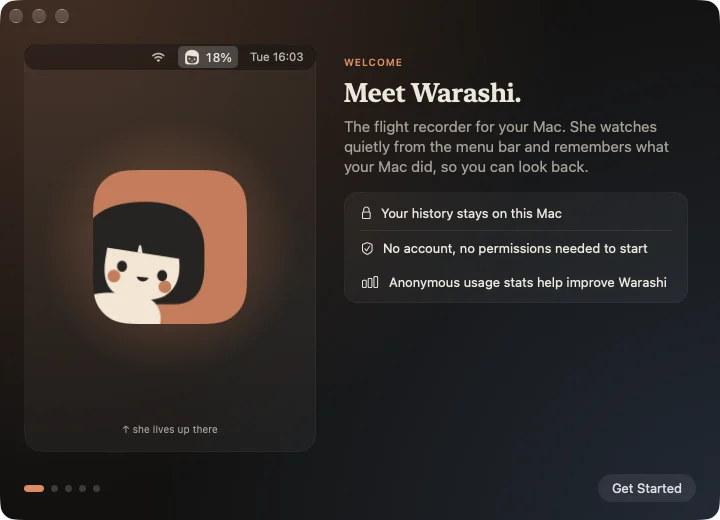
The first time Warashi opens, a short welcome tour lets you choose the number beside the spirit in the menu bar, turn on the notch glance and the island, decide whether to record which app is in front, and open Warashi at login. Every choice is also in Settings, and you can see the tour again from Settings › General.
Where things are
| Where | What it shows |
|---|---|
| Menu bar | The spirit and one live number. Click it for the popover. |
| Notch & island | Two numbers beside the notch; hover for a mini dashboard. |
| Window | Overview, Apps, History, Time × Cost, Upgrade Advisor, Alerts and Settings. |
Open at login
Warashi's history only has gaps when Warashi isn't running. Turn on Open Warashi at login in the tour or in Settings › General; macOS may ask you to approve it in System Settings › General › Login Items.