 Warashi
 keeps to one small item in your menu bar, so it fits any menu bar, however crowded: the spirit and one live number.
The number beside the spirit
Choose it in Settings › Menu Bar: CPU (the default), memory, GPU, power, temperature, network, disk or battery, or nothing at all, just the spirit. The item keeps a fixed width, so other menu bar icons don't jump as the number changes.
When something needs you
If memory runs short or your Mac runs hot, the number switches to the problem with a warning mark, for example ▲ MEM 29 GB, until it passes. You can turn this off with Show what needs you. A small dot beside the spirit means activity recording is on.
The popover
Click the item for the popover: CPU and memory with the last minute as a chart and the 95th percentile and peak of the last hour; GPU, power, temperature, network, disk and battery; and the top apps by CPU, memory or disk.
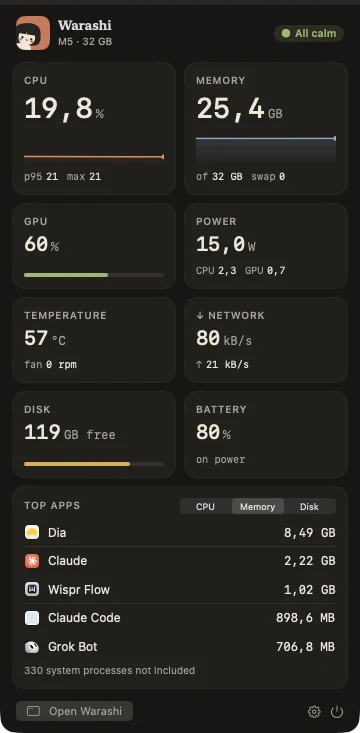
Hover any chart to read the value at that moment. The footer shows what Warashi itself costs right now, a gear for Settings and ⌘O to open the window. Click anywhere outside, or press Escape, to close it.