 Warashi
Lithium batteries age fastest when they sit at 100% and warm. If your MacBook lives on a desk, plugged in most of the day, stopping the charge at about 80% is the single most effective thing you can do for its battery health. Here is what macOS does by itself, what a limit changes, and how to set one.
What macOS already does
Optimized Battery Charging (System Settings › Battery) learns your routine and holds the charge at 80% until it predicts you'll unplug. It's good when your days are regular and does nothing on days that aren't. It never lets you choose a level.
What a fixed limit changes
A charge limit tells the Mac to stop charging at a level you pick, every day, routine or not. At 80% you lose a fifth of the battery's range on the days you do unplug, and gain years of slower ageing on the days you don't. For a desk Mac it's an easy trade; for a Mac that travels most days, leave it at 100% or charge to full before you go.
How to set a limit on macOS 26
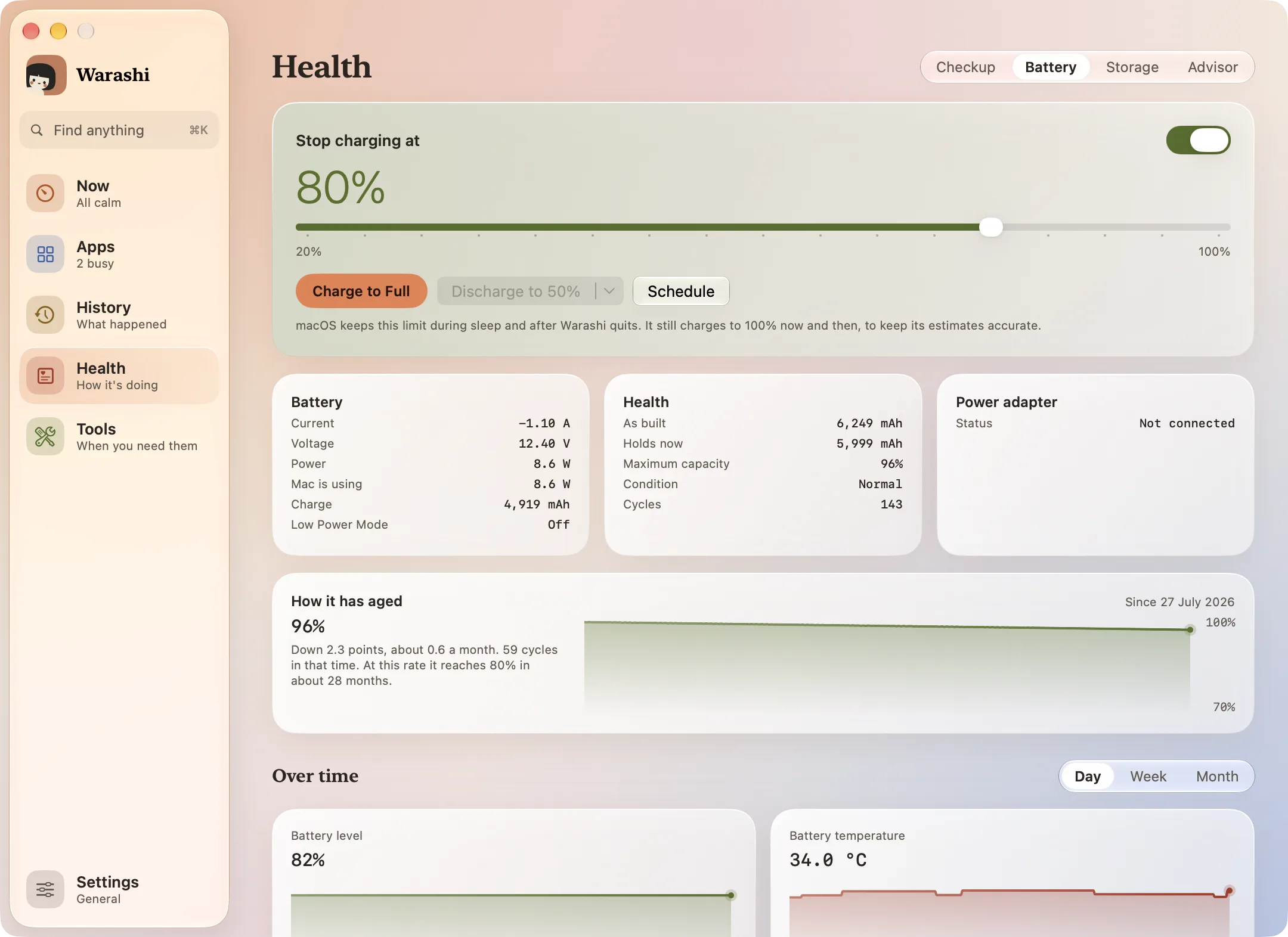
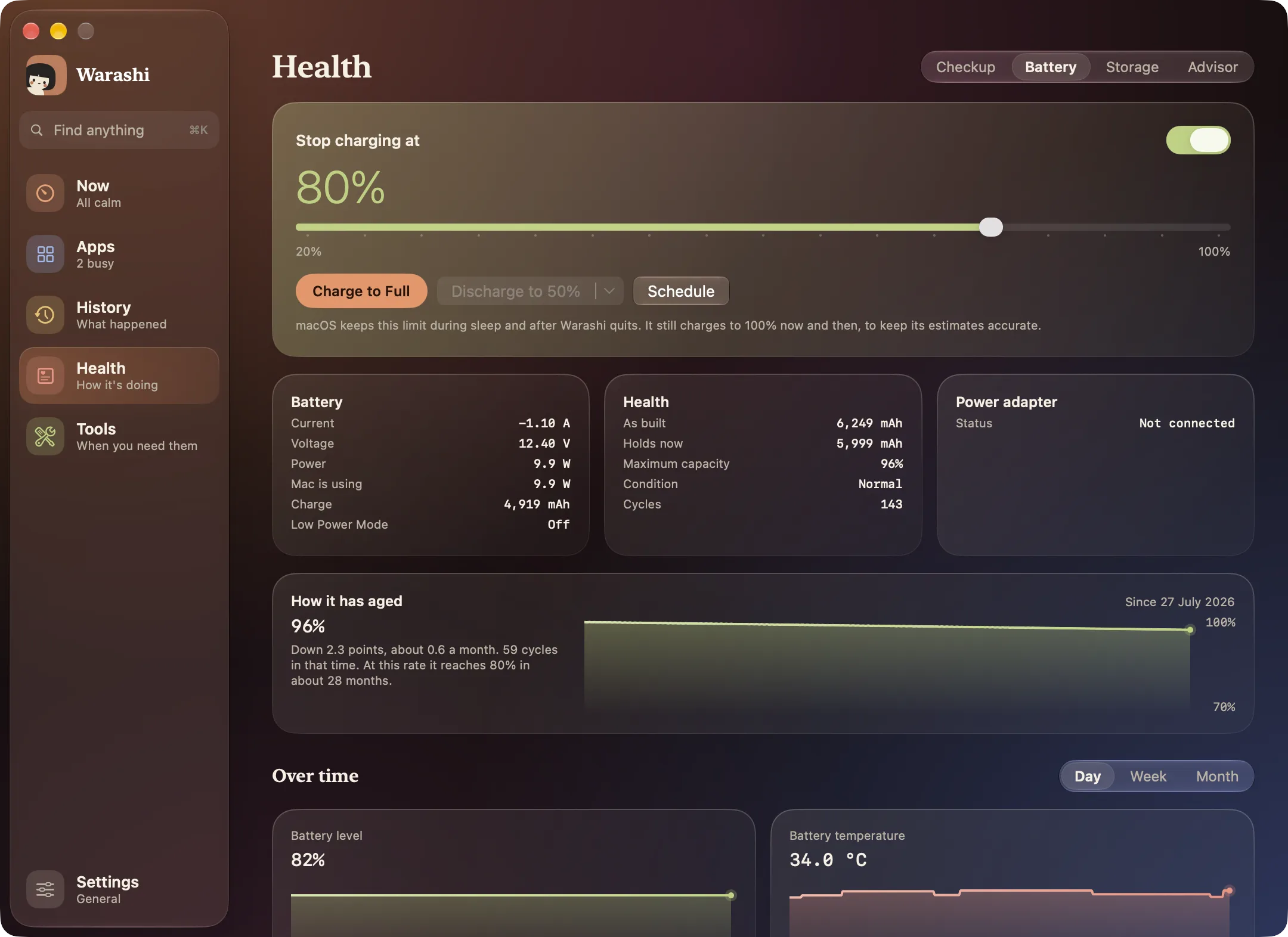
macOS 26.4 added a system charge limit of 80% that apps can turn on with your permission, and later versions allow lower levels. A battery app can show the limit as a slider, switch it on and off, and offer a one-off charge to full for the day you need it, without you touching System Settings.
Is a limit below 80% safe?
Yes: a battery held at 60 or 70% ages even more slowly, and macOS allows it from 26.7 on. The cost is range on the day you unplug. Many people settle on 80% as the point where the gain is most of the way there and the Mac still has a useful afternoon in it.
Why did it charge past the limit anyway?
- Two charge managers. Two apps setting the limit will fight, and a calibration run by one of them charges to 100% on purpose. Keep one.
- Charge to full was on. Most tools offer a one-off full charge; it switches itself off afterwards.
- An older macOS. Before 26.4 there is no system limit; apps that claim one on older systems are guessing.
How to tell whether it's working
Look at the battery's health and cycle count over months, not days. A tool that keeps a history can show you the curve: a battery held at 80% loses maximum capacity noticeably slower than one that sits at 100%.