 Warashi
Battery is a tab in Health, on Macs with a battery. It shows how your battery is doing and lets you choose where charging stops, which keeps a battery that's mostly plugged in healthier for longer.
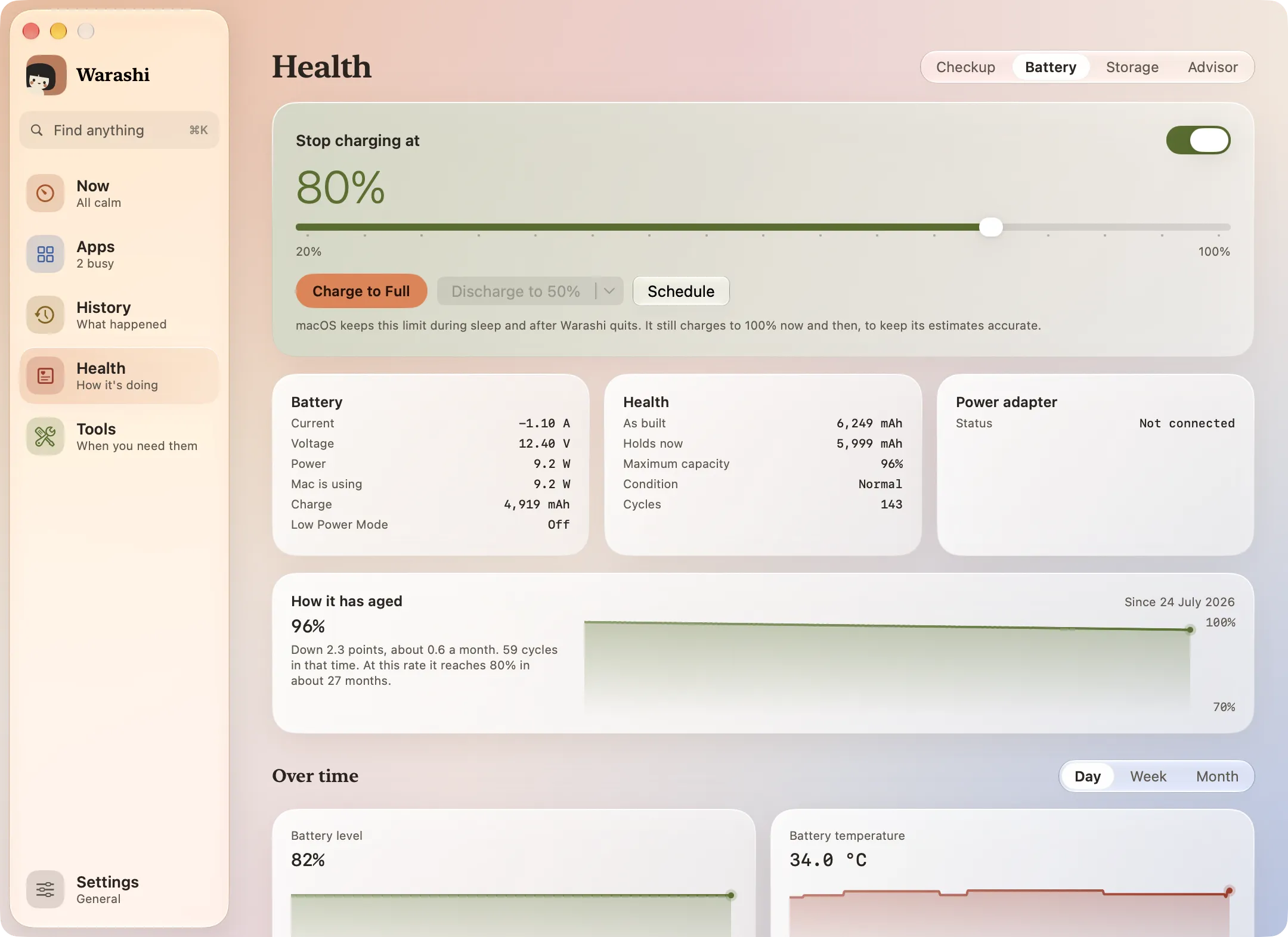
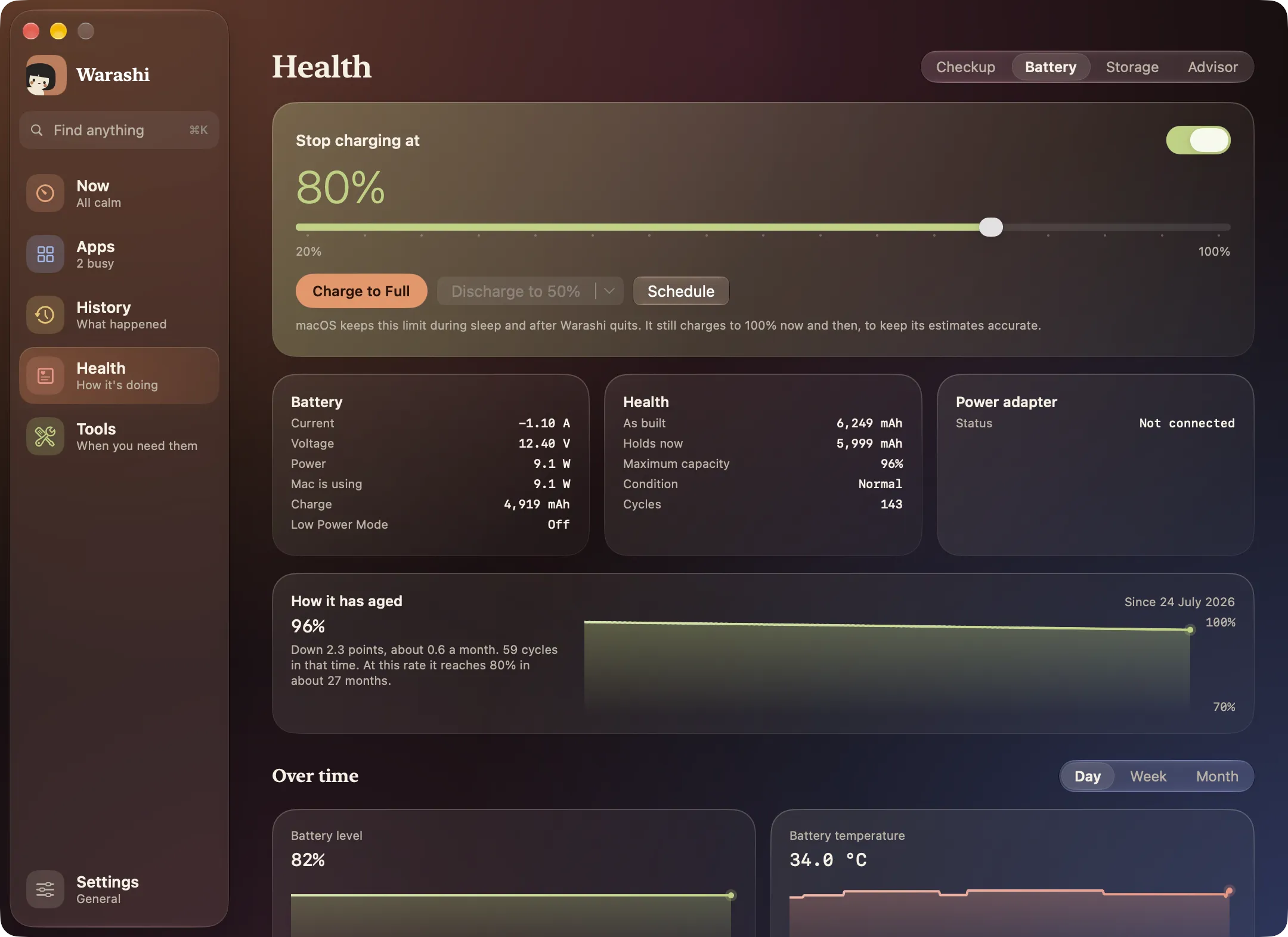
Stop charging at a level you choose
- Turn it on
Switch on Stop charging at and drag the slider. It moves in steps of 5%; 100% means no limit. The line under it says what's happening: Holding at 80%, Charging to 80%, Coming down to 80% or Will stop at 80% when plugged in.
- Charge to full, just this once
Before a long day away, press Charge to Full. Your Mac charges to 100% this once, then the limit carries on. The Charge action in the menu bar window and the notch does the same.
- Or run it down
Press Discharge to 50% beside it, or click its arrow to pick 80, 70, 60, 50, 40 or 30%. Your Mac runs on the battery while the charger stays plugged in, then charging takes over again, back up to your limit if one is on. That's handy before you put the Mac away for a while. You don't need it to come down to your limit: macOS does that by itself. It stops by itself if you unplug, the Mac sleeps or gets hot, and when Warashi quits. It needs the System helper, and only appears on Macs that can do it. The round button beside the bolt in the menu bar window starts it at the level you picked last.
- Or schedule it
Press Schedule to choose Full charge or a limit for a date and time, for example tomorrow at 07:00 before you leave. If your Mac is asleep then, it happens when it wakes.
The same control is in Checkup, in Tools, and, if you add it, in the menu bar window.
Which Macs, and which levels
- A charge limit needs macOS 26.4 or later on Apple silicon. Warashi uses the same limit macOS itself offers, from 80% to 100%.
- Limits below 80%, down to 20%, need macOS 26.7 or later and the System helper. Below 80%, Warashi uses a setting Apple doesn't document: System Settings may show an unusual value, and a macOS update could stop it working.
- macOS keeps the limit while your Mac sleeps and after Warashi quits. It still charges to 100% now and then, to keep its estimates accurate.
The rest of the page
Cards for the Battery (charge, time left, temperature), its Health (maximum capacity, cycles, condition) and your Power adapter. How it has aged charts maximum capacity over all the history Warashi keeps (up to a year), with what it has lost, how fast, the cycles in that time and, at that rate, roughly when it reaches 80%, the capacity Apple designs batteries to keep. It needs two weeks of history before it shows a rate. Below, Over time charts by day, week or month: battery level, temperature, power, maximum capacity and cycles, and the apps using the most power.
Another app managing charging
If AlDente or a similar app is running while your limit is on, the tile says so and offers to open it. Two apps setting a limit undo each other: when AlDente calibrates the battery, for example, it charges to 100% past your limit. Keep one of them in charge. What happened shows in the Flight Log.
If something's not right
- The control says this Mac can't set a limit: update to macOS 26.4 or later.
- The slider starts at 80%: lower limits need macOS 26.7 or later. On 26.7 and later, turn on the System helper when asked.
- It went past the limit: macOS occasionally charges to 100% to recalibrate, or you pressed Charge to Full.
More in Troubleshooting, or email adam@warashi.app.