 Warashi
Close the lid of a MacBook and it sleeps: downloads stop, builds pause, the server you were serving from goes quiet. macOS has no switch for "keep working with the lid closed" unless an external display and a keyboard are plugged in (clamshell mode). Here is what works, what doesn't, and how to do it safely.
1. The built-in way: clamshell mode
Plug in power, an external display, and a keyboard or mouse. Close the lid and the Mac keeps running on the external display. That's Apple's supported way, and it's the right one if you have a monitor. Without all three (power, display, input device) the Mac sleeps when the lid closes.
2. The Terminal way: caffeinate and pmset
caffeinate -i keeps the Mac from idle-sleeping while a command runs, but it does not stop lid sleep. For that you need sudo pmset -a disablesleep 1, which disables sleep altogether, including with the lid closed. It works, with three catches: it needs an administrator password every time, it's easy to forget to turn off again, and a MacBook left like that in a bag can get hot and drain its battery to nothing.
3. An app that does it on your terms
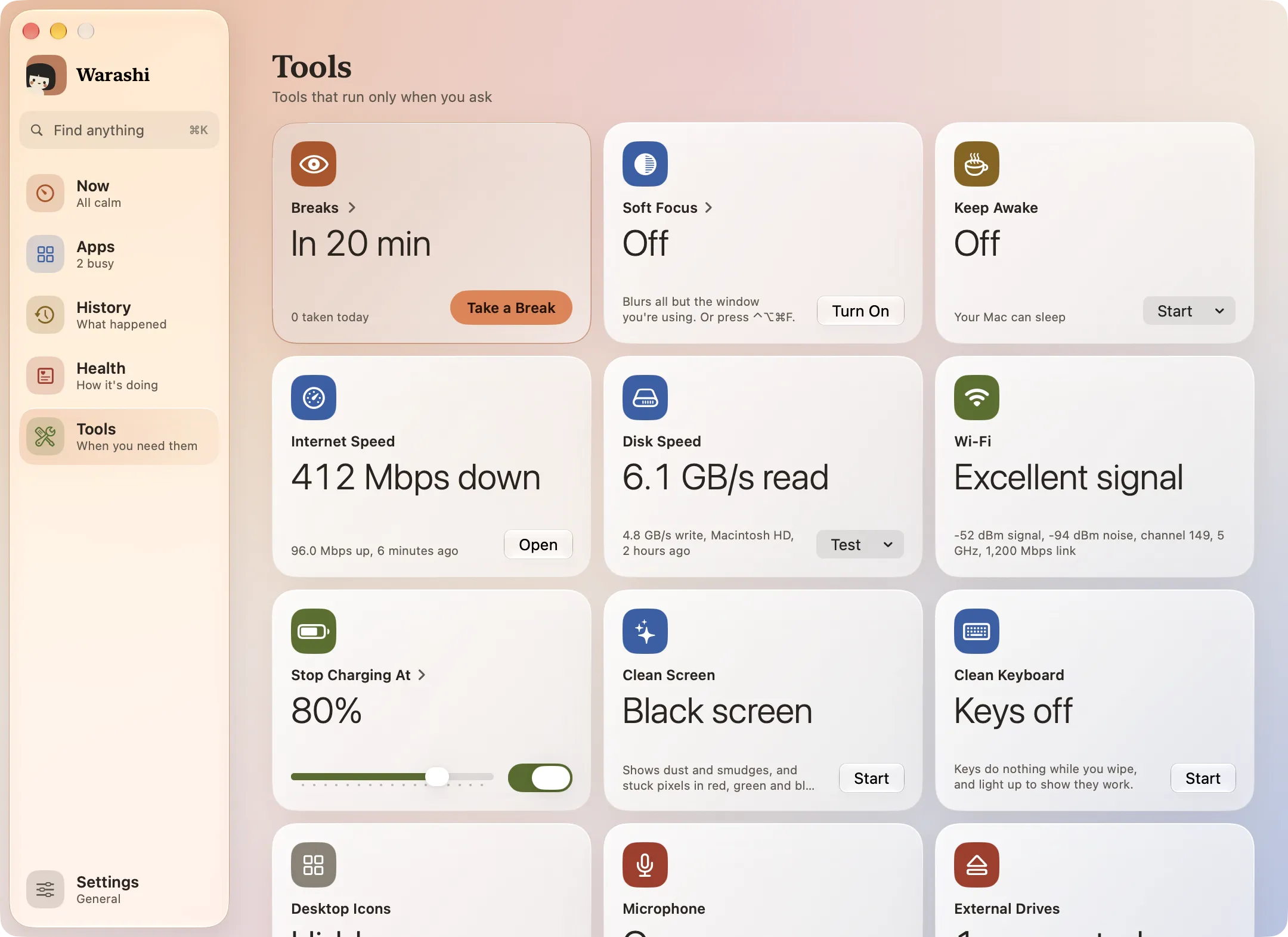
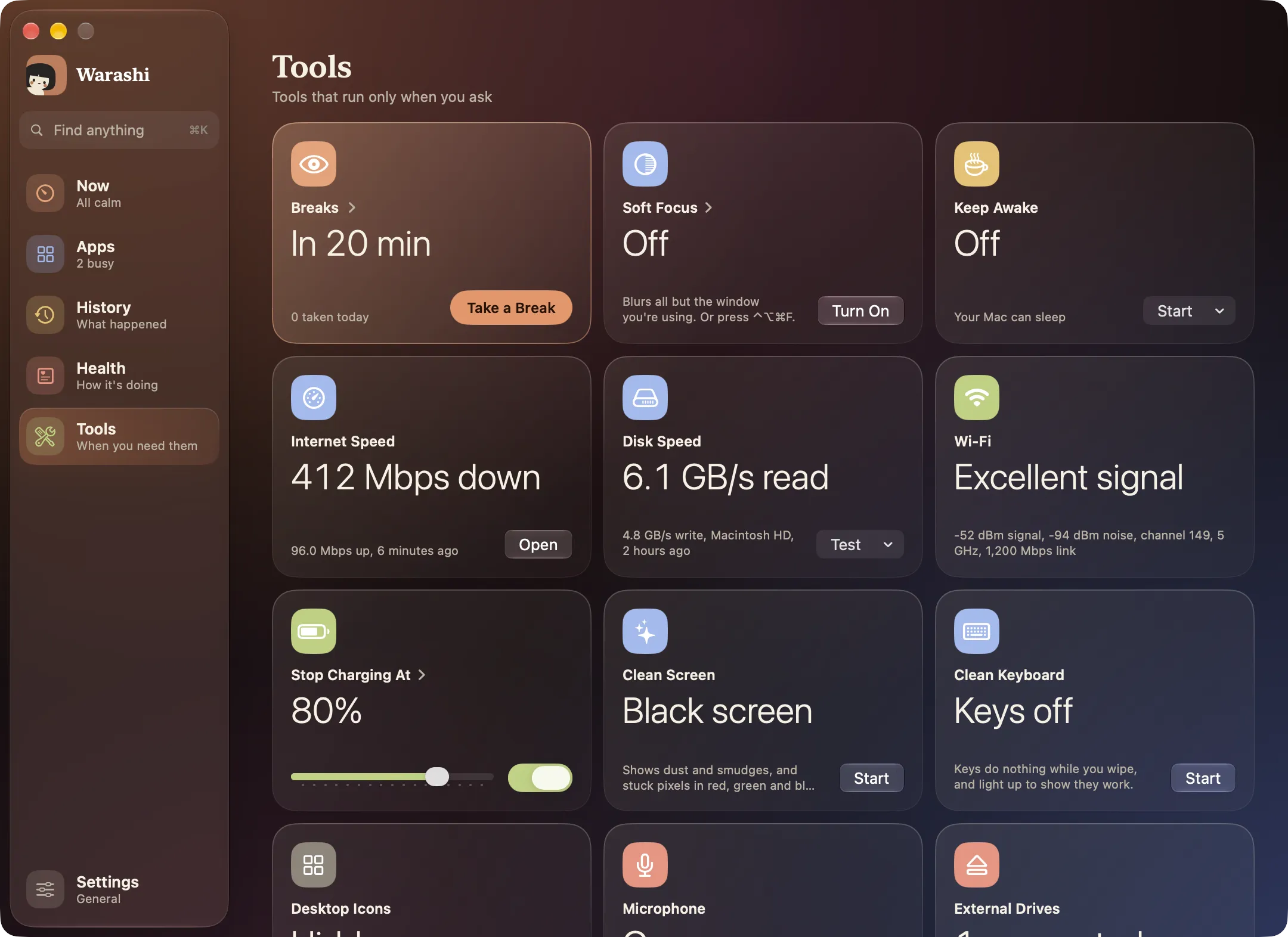
A menu bar app can hold the Mac awake for exactly as long as you want: for 30 minutes, until a download or build finishes, while a certain app is open, or until you say stop. The good ones add the lid-closed option with guard rails: only while plugged in, and with a time limit, so the Mac can't cook in a bag or run its battery flat.
Is it safe to run a MacBook with the lid closed?
Yes, on a desk and plugged in. Apple's own clamshell mode does exactly that. Two things to avoid: running it closed on battery for hours (the battery drains with the screen off and you don't notice), and putting a running MacBook in a bag, where the keyboard vents are covered. Pick a tool that releases the lid hold when the charger comes out, and set a time limit.
When the Mac still went to sleep
- The charger came out. Most lid-closed tools release the hold on battery, on purpose.
- Only the screen turned off. The Mac was awake; macOS turned off and locked the display on its own schedule. Check your tool's log for a real sleep entry before blaming it.
- The tool quit or updated. Choose one that remembers a running session across its own restarts.
- Battery reached the floor. Good tools stop at about 10% to protect the battery.