 Warashi
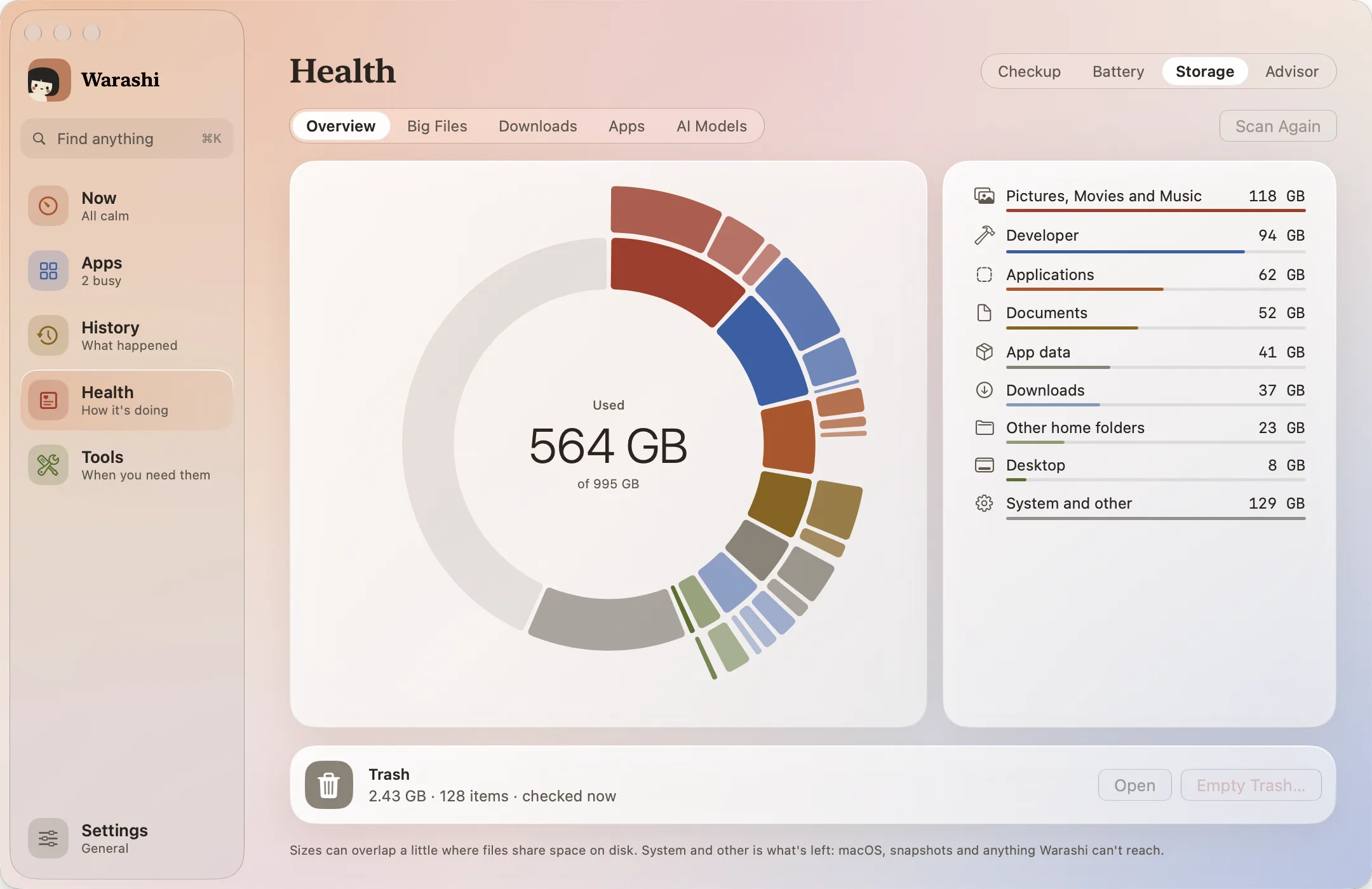
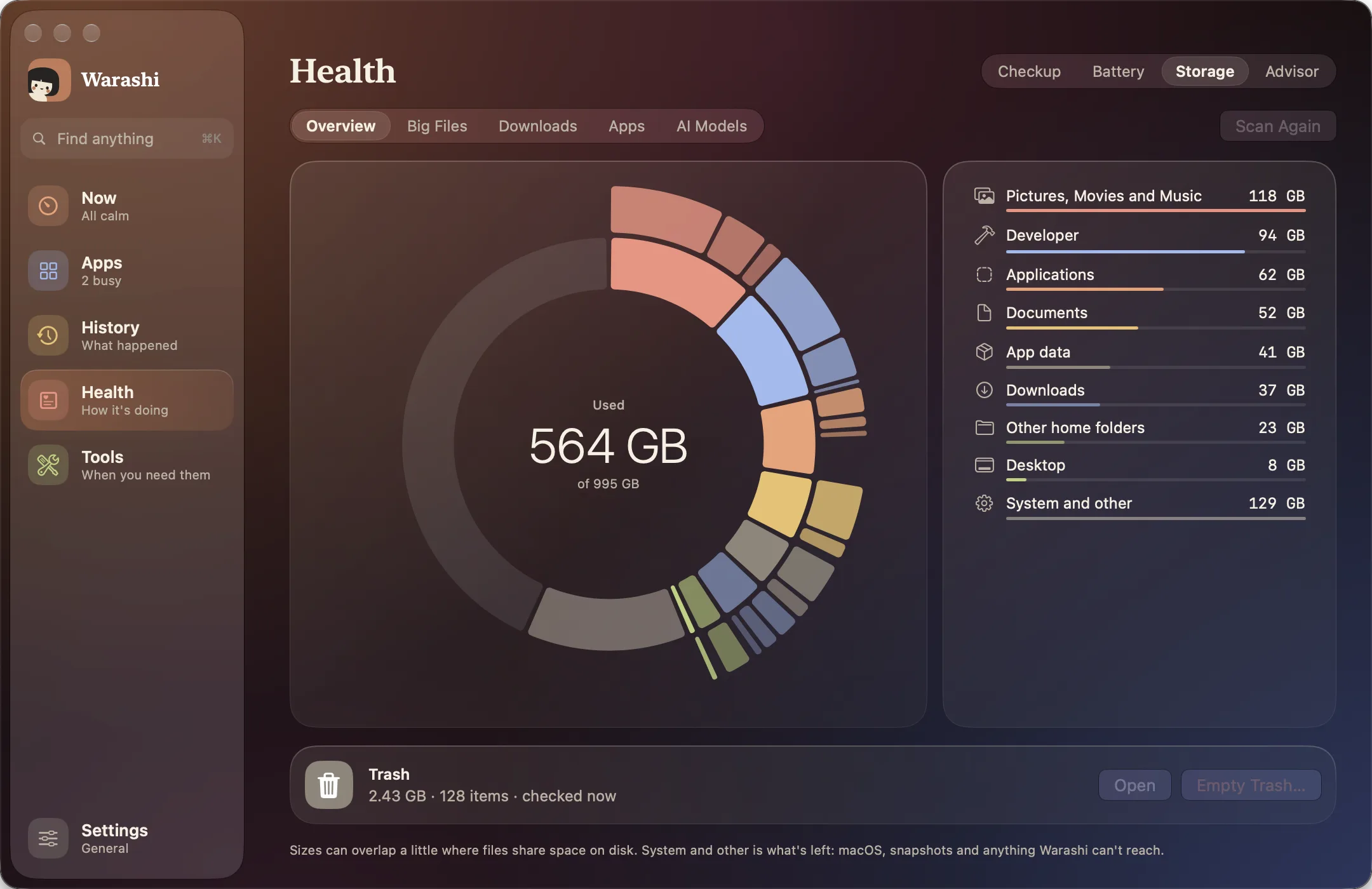
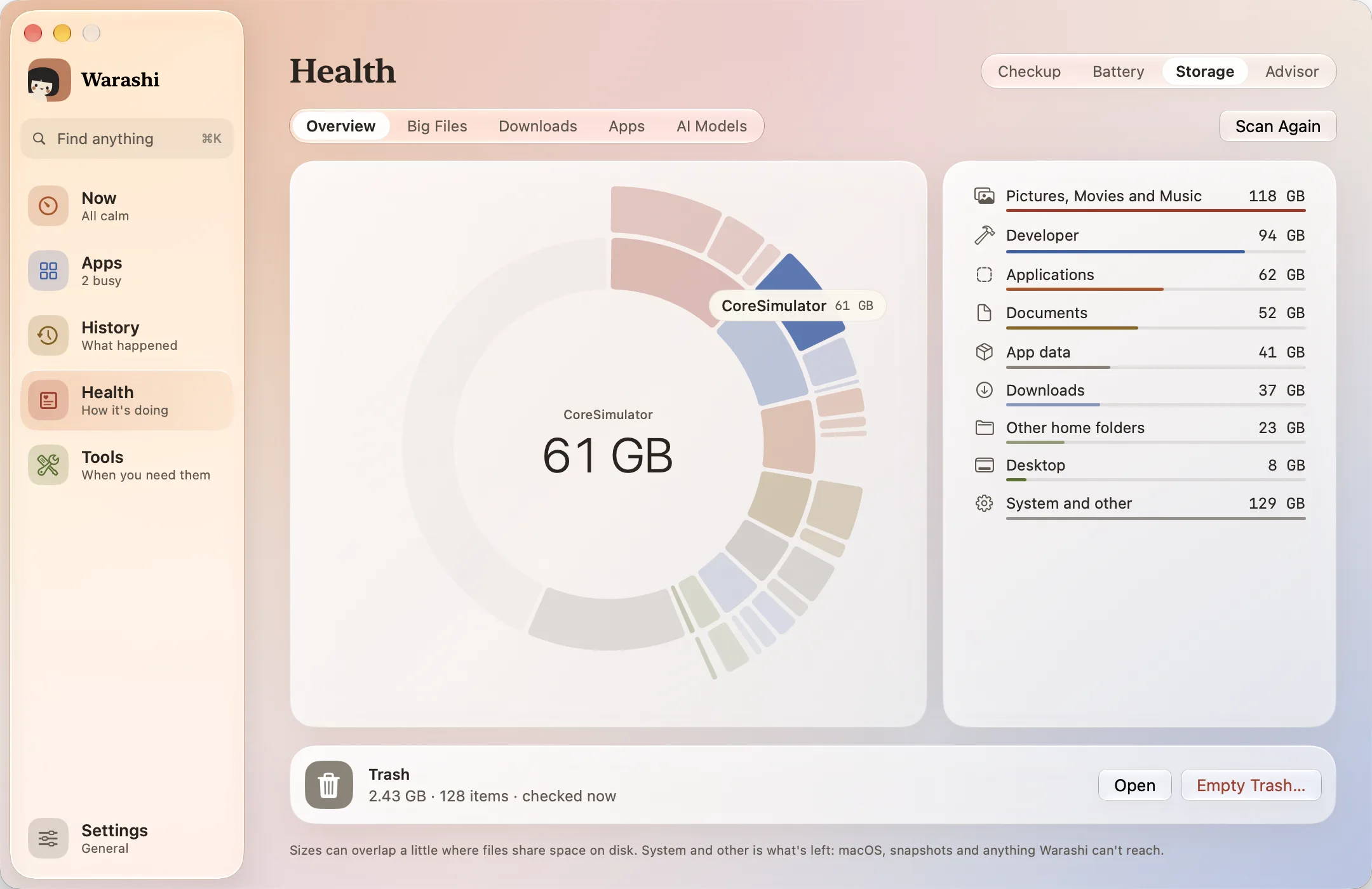
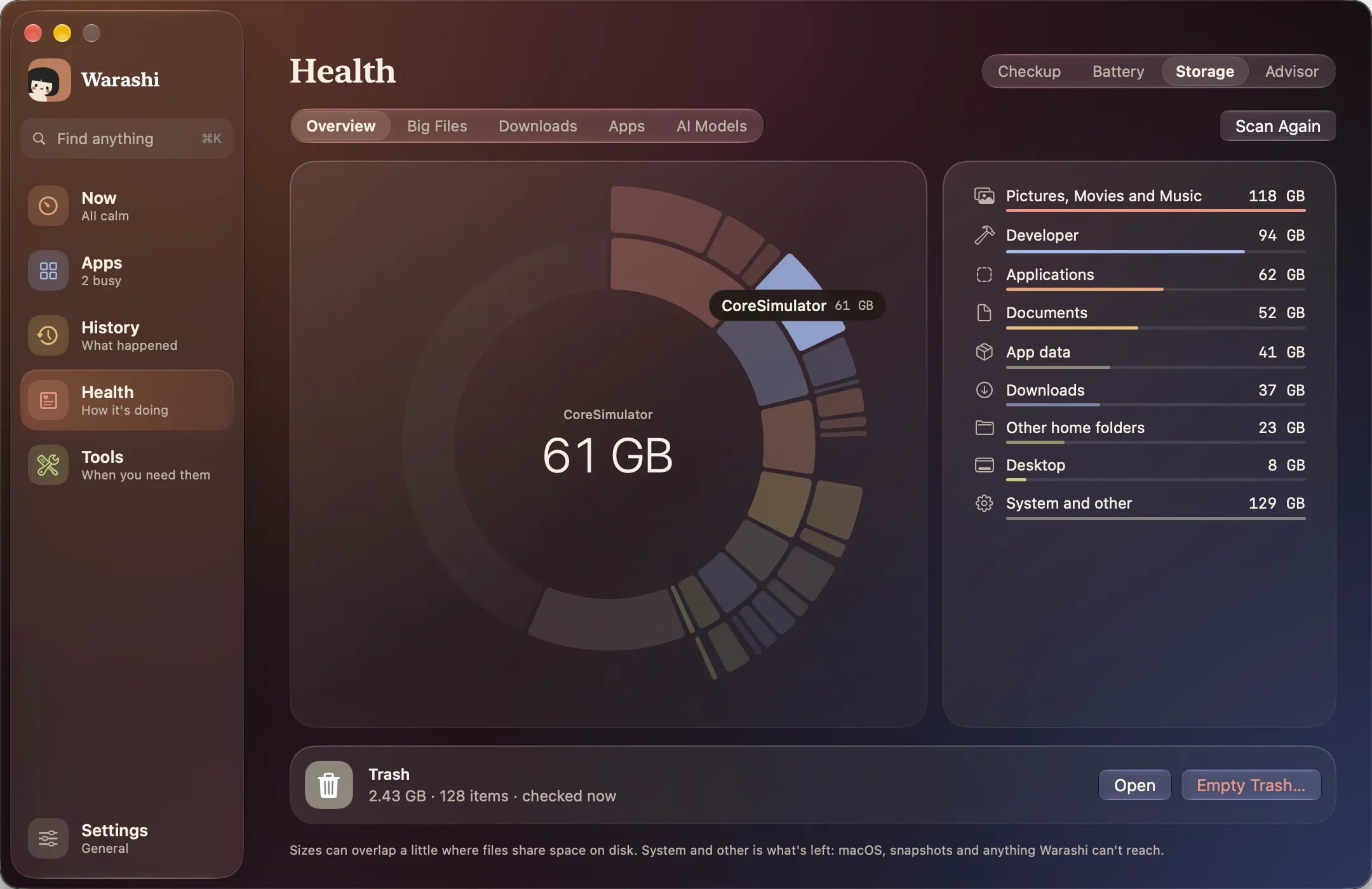
A full disk slows a Mac down and blocks updates. The good news is that most of the space usually sits in a handful of places. Here's how to find them.
1. Start with the big picture
Open › System Settings › General › Storage. The coloured bar shows your disk by category, and the list below it lets you look inside each one and empty the Trash.
2. Check the usual suspects
- Downloads and the Trash. Old installers and disk images pile up quietly. Files in the Trash still use space until it's emptied.
- Photos, music and video. A library kept entirely on your Mac can be hundreds of gigabytes. iCloud's Optimise Mac Storage keeps smaller copies on your Mac.
- iPhone and iPad backups. Old device backups can be very large. Manage them in Finder, under your device's Manage Backups.
- Developer tools. Xcode's derived data, archives and Simulators can reach tens of gigabytes, and so can Docker images and virtual machines.
3. What is “System Data”?
It's everything that doesn't fit another category: caches, logs, Time Machine's local snapshots and more. A lot of it is temporary, and macOS clears it when it needs the room, so it can look alarming without being a problem.
4. How much free space do you need?
macOS needs room for swap, updates and caches. Below roughly 10–15% free, things start to slow down. If you're often near that line, see Should I upgrade my Mac?
5. Be careful what you delete
Stick to files you recognise. Deleting things at random from your Library folder can break apps or lose their data, and caches that you clear by hand usually just come back.