 Warashi
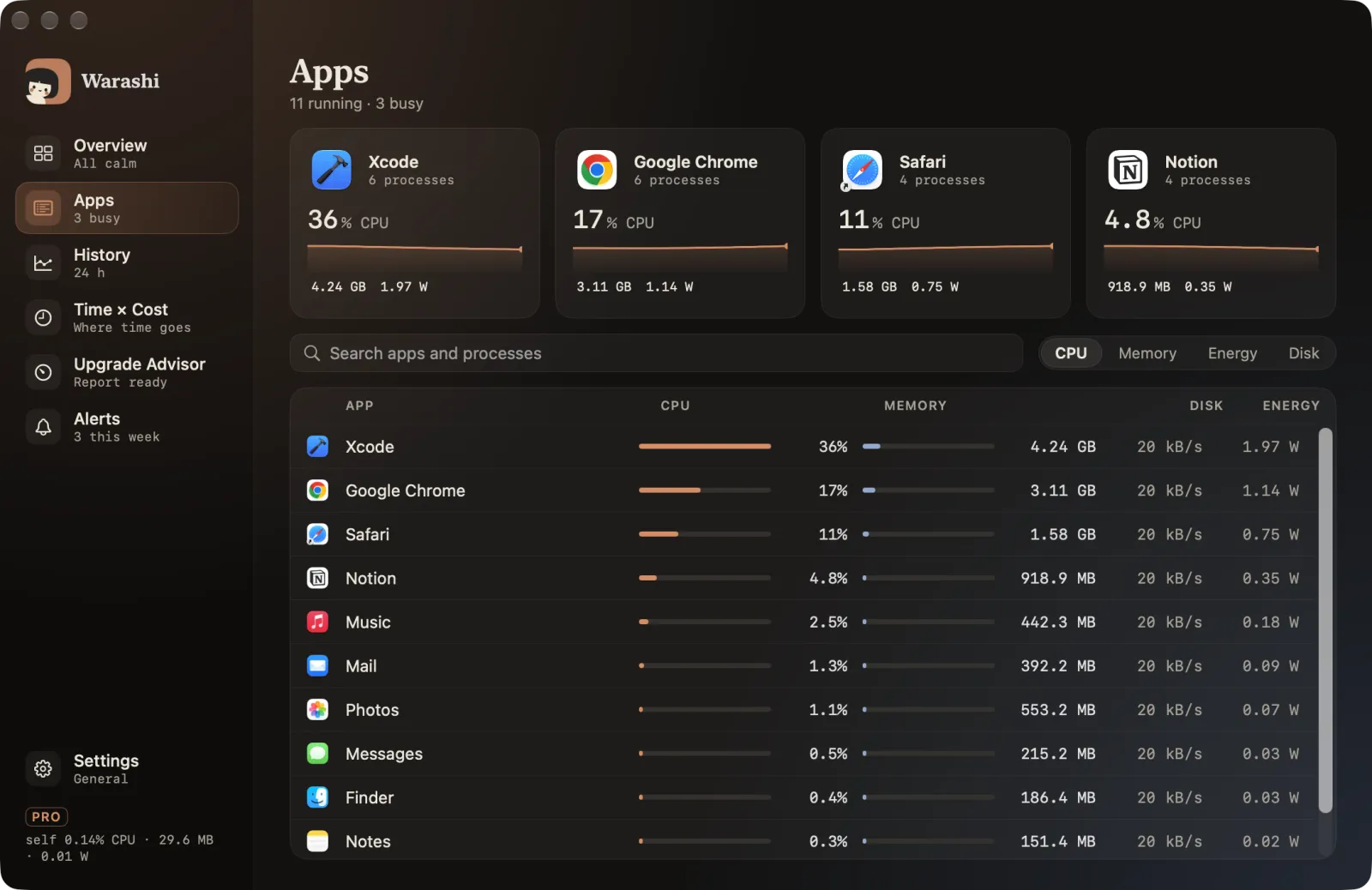
Apps shows what each app costs right now, with its helpers grouped under it (so Chrome is one row, not twenty).
- Open Apps
Choose Apps in the sidebar or press ⌘2. The four busiest apps sit at the top as cards with their last minute; they trade places only when the ranking clearly changes.
- Search or sort
Type in Search apps and processes to find an app or a process by name. Use CPU, Memory, Energy and Disk to sort the list.
- Open an app's drawer
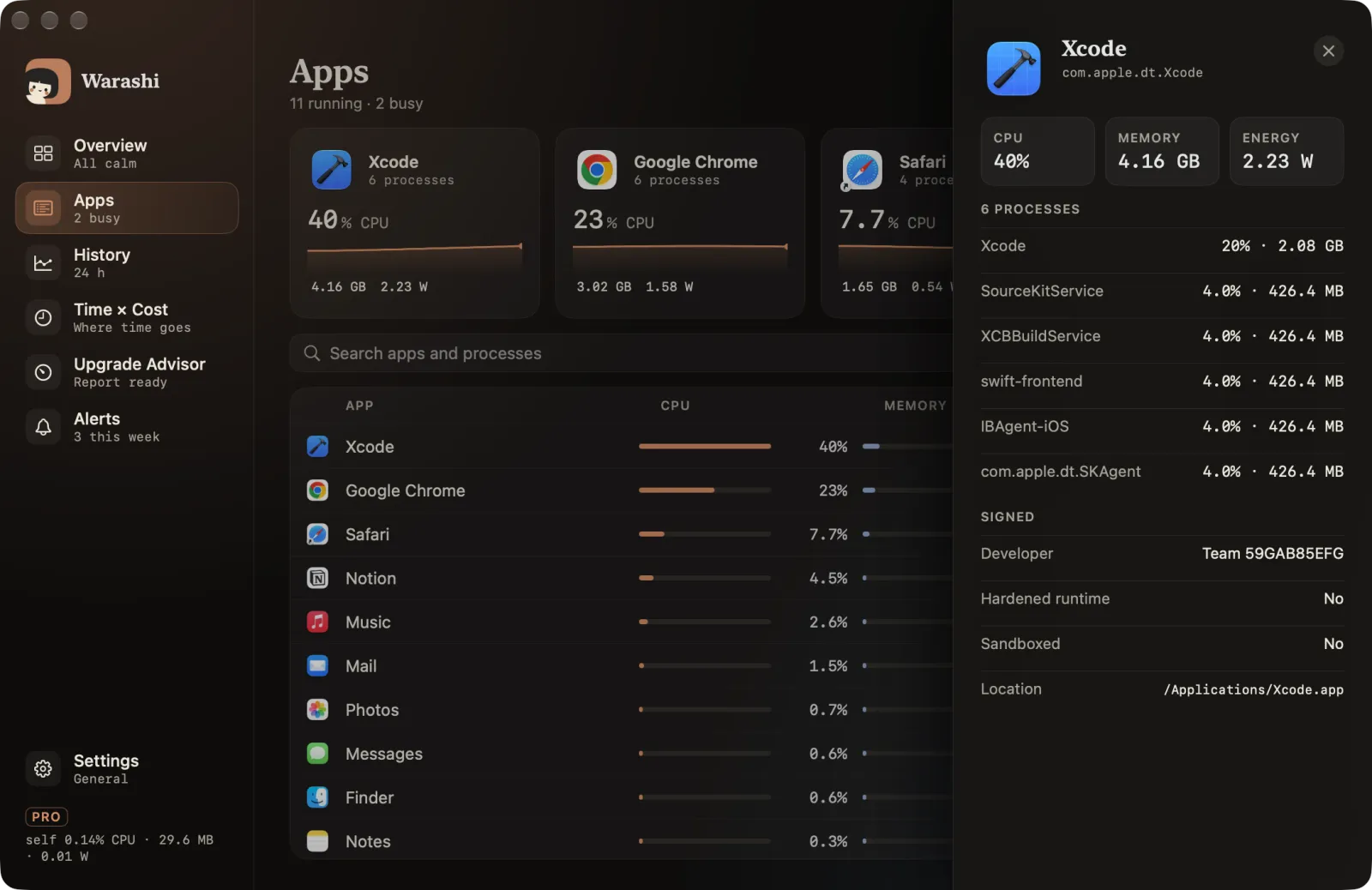
Click an app. Its drawer shows CPU, memory and energy, every process it runs, who signed it (Apple, a developer team or ad hoc), whether it uses the hardened runtime, and where it lives on disk.
- Look at one process
Click a process in the drawer for how it was started: command line, parent, user, start time and launch job. Press Escape or click outside to close the drawer.