 Warashi
 keeps itself up to date. Updates are signed: Warashi installs only versions signed by its developer.
- Open Settings › Updates
Press ⌘, and choose the Updates tab.
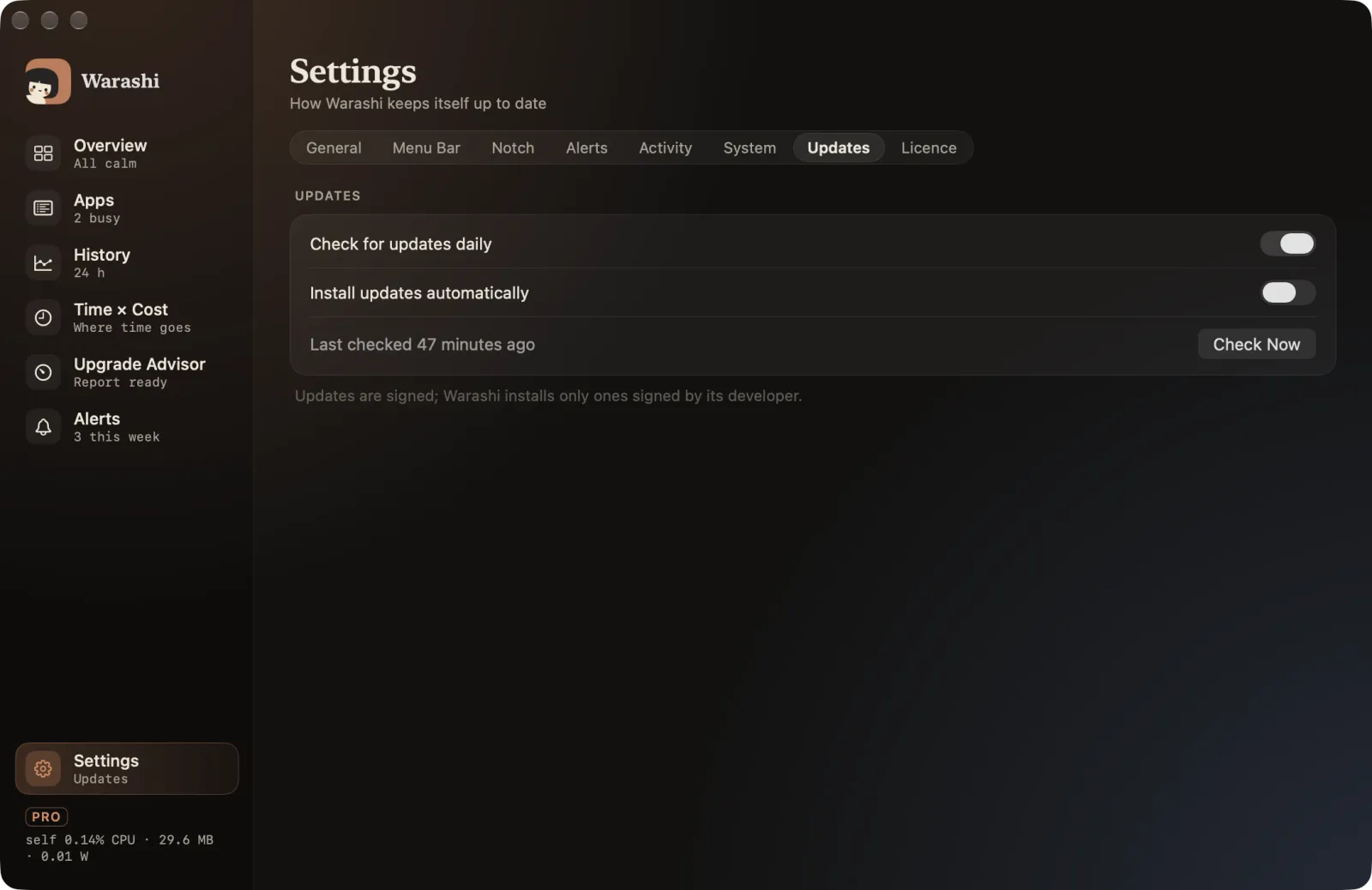
- Choose how updates arrive
Check for updates daily looks once a day. With Install updates automatically, new versions download and install quietly; otherwise Warashi asks first.
- Update now
Click Check Now. If there's a new version, a window shows what's new: click Install Update, and Warashi restarts on the new version. Your history and settings stay.
Good to know: If an update is found while you're busy, Warashi doesn't interrupt you: a download button appears in the popover's footer and, if you allow notifications, one notification.