 Warashi
Installing takes about a minute. You'll need a Mac with Apple silicon (M1 or later) and macOS 26 or newer. Not sure? Choose Apple menu › About This Mac: it shows the chip and the macOS version.
- Download Warashi
Click Download at the top of any page on warashi.app. Your browser saves
Warashi.dmg, usually to your Downloads folder. It’s about 9 MB. - Open the disk image
Double-click
Warashi.dmgin Downloads (or click it in your browser's downloads list). A window opens with Warashi and your Applications folder.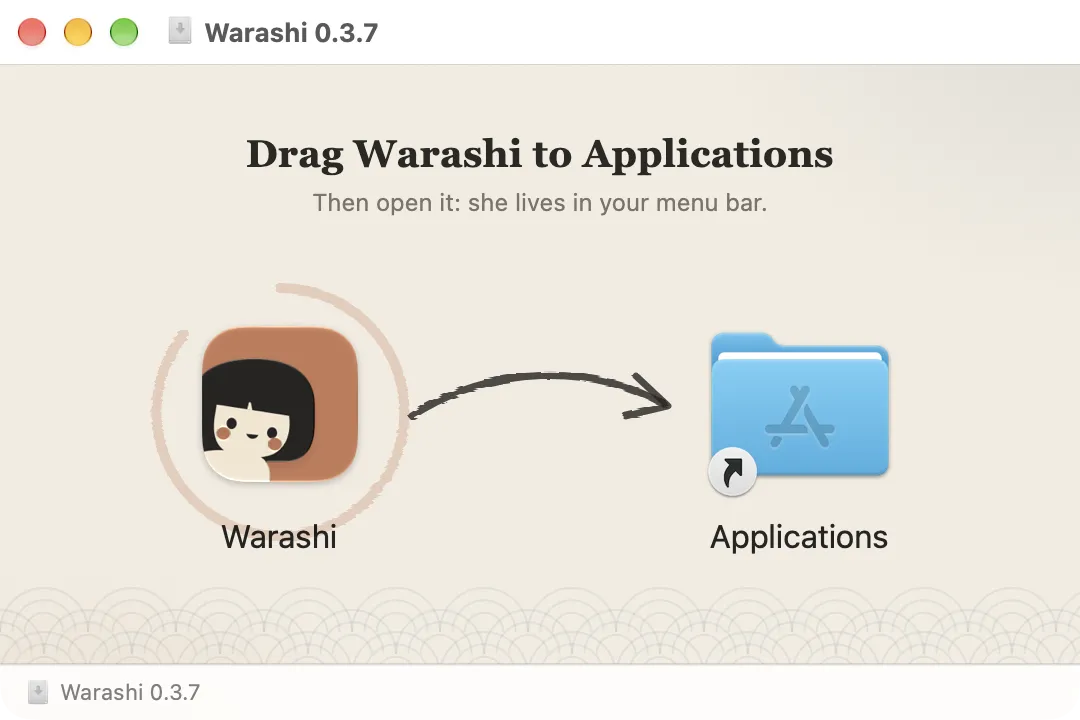
The disk image: drag the spirit onto Applications. - Drag Warashi to Applications
Drag the Warashi icon onto the Applications folder. When the copy finishes you can close the window and eject the disk image (the ⏏ button beside “Warashi” in Finder's sidebar).
- Open Warashi
Open your Applications folder and double-click Warashi. Because it came from the internet, macOS asks once whether to open it. Warashi is signed and checked by Apple, so click Open.
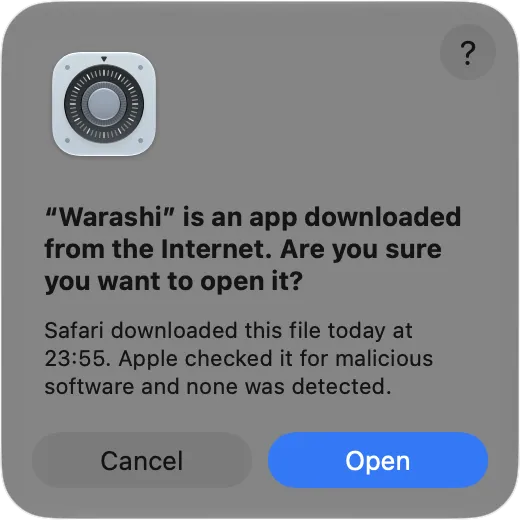
macOS asks once. Apple has checked Warashi, so it's safe to click Open. - Take the welcome tour
The welcome tour opens. It's five short pages: see The welcome tour for what each one does.
- Find the spirit in your menu bar
Warashi lives in the menu bar at the top right of your screen: a small spirit with one live number beside it. Click it any time.

The spirit and one number, here the CPU.
If something's not right
- “Warashi can't be opened” or the app is damaged: download it again from warashi.app and open the new copy. Only download Warashi from warashi.app.
- Your Mac says it isn't supported: Warashi needs Apple silicon and macOS 26. Intel Macs aren't supported.
- You can't see the spirit: a crowded menu bar can hide it behind the notch. See I can't see Warashi in the menu bar.
More in Troubleshooting, or email adam@warashi.app.