 Warashi
If you work with Claude Code, Codex or Cursor, Warashi can watch them for you: what each session is doing, how close each is to its usage limit, and when one needs you. It's off until you turn it on.
- Turn it on
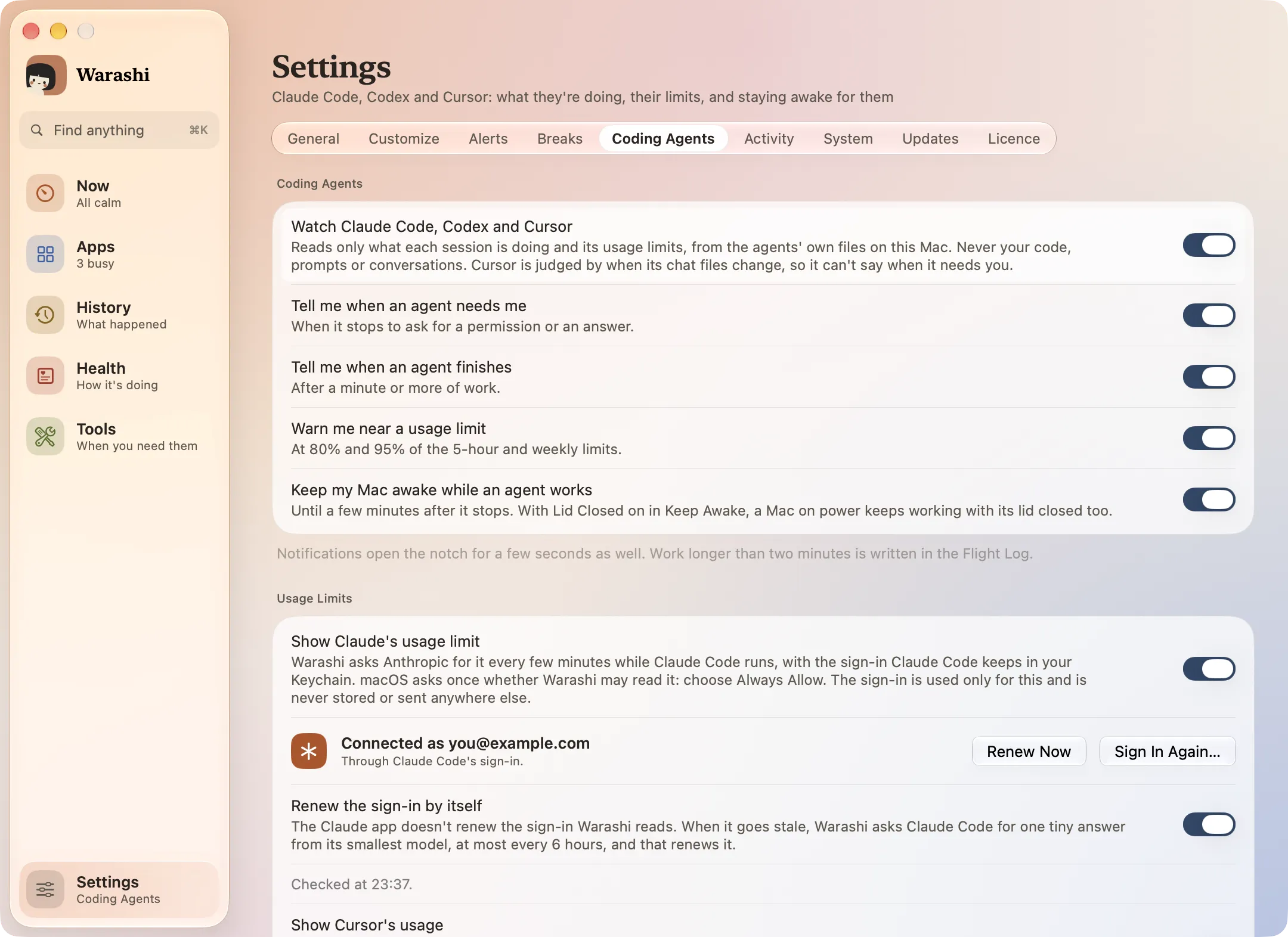
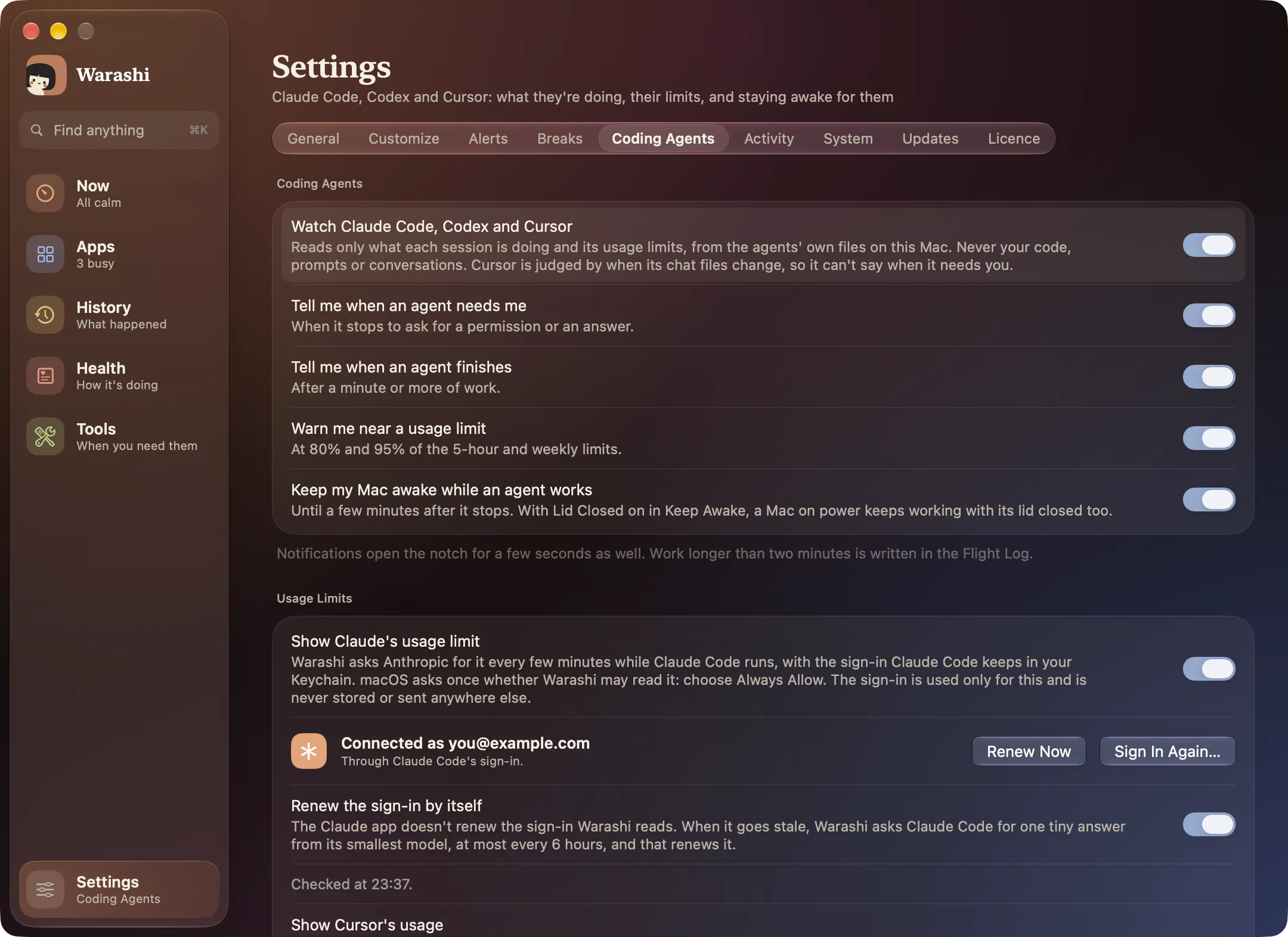
Open Settings › Coding Agents and turn on Watch Claude Code, Codex and Cursor, or press Turn On… on the Coding agents card at the top of Apps › Developer. Warashi asks once whether it may send notifications.
- Choose what to be told
Tell me when an agent needs me (it stopped to ask for a permission or an answer), Tell me when an agent finishes (after a minute or more of work) and Warn me near a usage limit (at 80% and 95%). Each arrives as a notification and opens the notch for a few seconds. Click the notification to see your agents.
- Watch them work
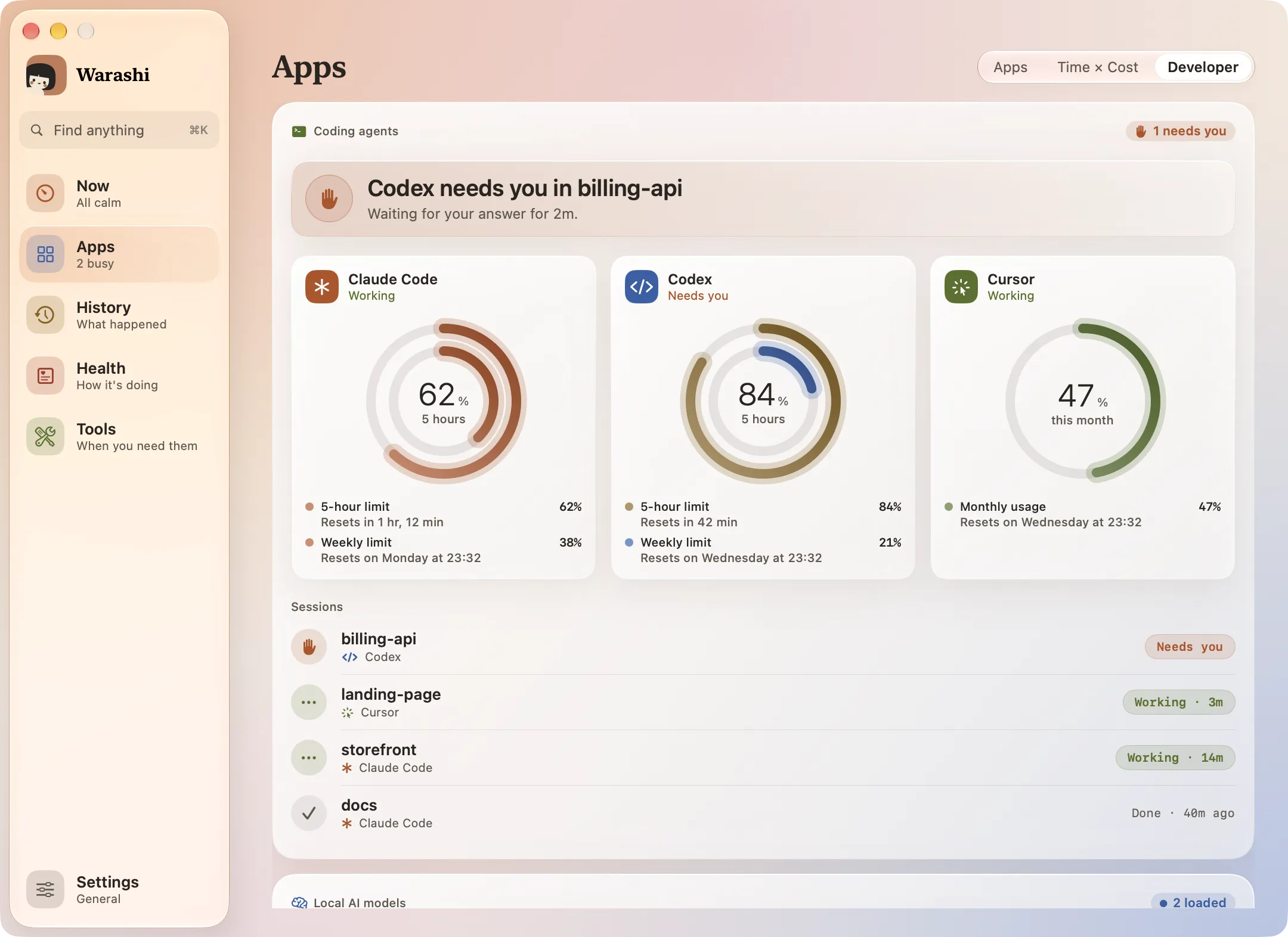
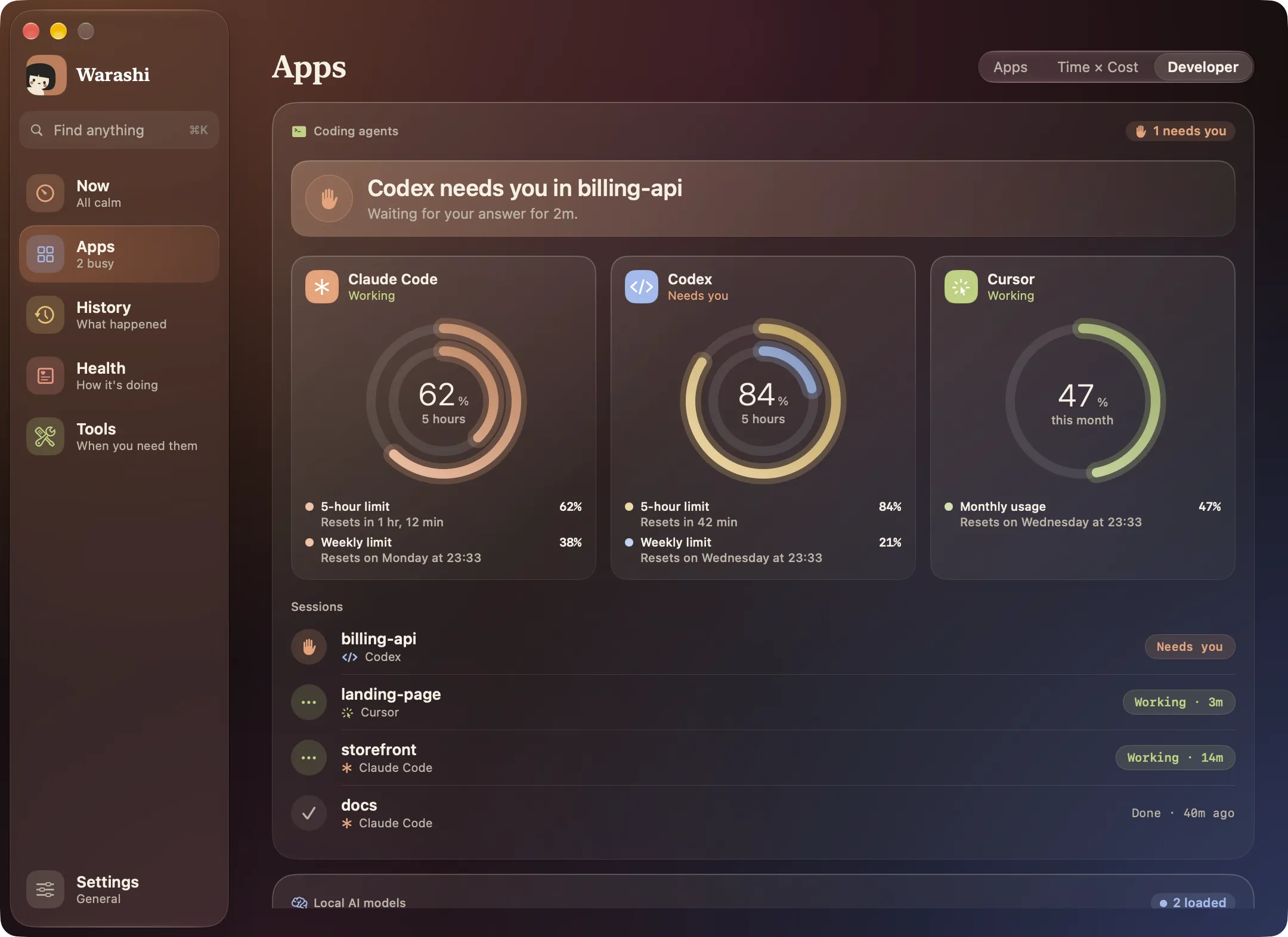
The Coding agents card in Apps › Developer shows each session: working, needs you or done, in which project. While one works, the notch shows how long, in place of its two readings. Add Coding agents to the menu bar window in Settings › Customize to see the limits there too, or choose Coding agent limit beside the spirit in your menu bar.
Usage limits
Each limit is a ring: the 5-hour limit and the weekly limit, with when it resets. A ring turns amber from 80% and red from 95%.
- Codex writes its limits in its own files on your Mac, so they appear after Codex's next answer.
- Cursor shows its monthly usage. Turn on Show Cursor's usage; Warashi asks Cursor for it with the sign-in Cursor's command-line agent keeps in your Keychain, so sign in once with
cursor-agent login. If macOS asks, choose Always Allow. - Claude Code doesn't keep its limit on your Mac. Turn on Show Claude's usage limit and Warashi asks Anthropic for it, every few minutes while Claude Code runs, using Claude Code's own sign-in from your Keychain. macOS asks once, when you turn it on, whether Warashi may read it: choose Always Allow. Warashi never asks on its own: if macOS needs your OK later, Settings says so, with an Allow… button. The sign-in is used only for this request; it's never stored, changed or sent anywhere else.
Signing in to Claude
Under Show Claude's usage limit, Settings shows who Claude Code is signed in as. Not signed in? Sign In opens Claude Code's own sign-in in Terminal, which takes you to your browser. Claude Code renews its sign-in only while you use it, so after a quiet day the limit can stop updating: with Renew the sign-in by itself on, Warashi asks Claude Code for one tiny answer from its smallest model, at most every six hours, and Claude Code renews it. Renew Now does it at once. Warashi never refreshes or writes a sign-in itself.
Stay awake while they work
Turn on Keep my Mac awake while an agent works in Settings › Coding Agents, or Automatically › While a Coding Agent Works in Keep Awake. Your Mac stays awake while an agent works or waits for you, and for three minutes after. With Stay Awake With the Lid Closed on, a MacBook on its charger keeps working with the lid shut.
In the Flight Log
Work longer than two minutes is written in the Flight Log: "Claude Code worked for 1 h 12 min, in shop".
If something's not right
- Claude's limit says the sign-in has expired: run Claude Code once in a terminal and it renews its sign-in. Claude Code inside the Claude desktop app keeps its sign-in elsewhere.
- Codex's limit doesn't appear: it shows after Codex's next answer, from the last week of sessions.
- Cursor never says it needs you: Cursor doesn't record that anywhere Warashi may read, so only working and done are shown for it, about a minute after it stops.
- Other agents: Gemini CLI, Aider and others show their CPU and memory in Developer, without a working or waiting state.
More in Troubleshooting, or email adam@warashi.app.