 Warashi
Power Flow is the second tab of Now. It shows where your Mac's power is coming from and where it's going, right now.
- Open it
Choose Now and the Power Flow tab, press the Power tile on Overview, or press Power in the menu bar window. You can also add a small version of Power Flow to the menu bar window.
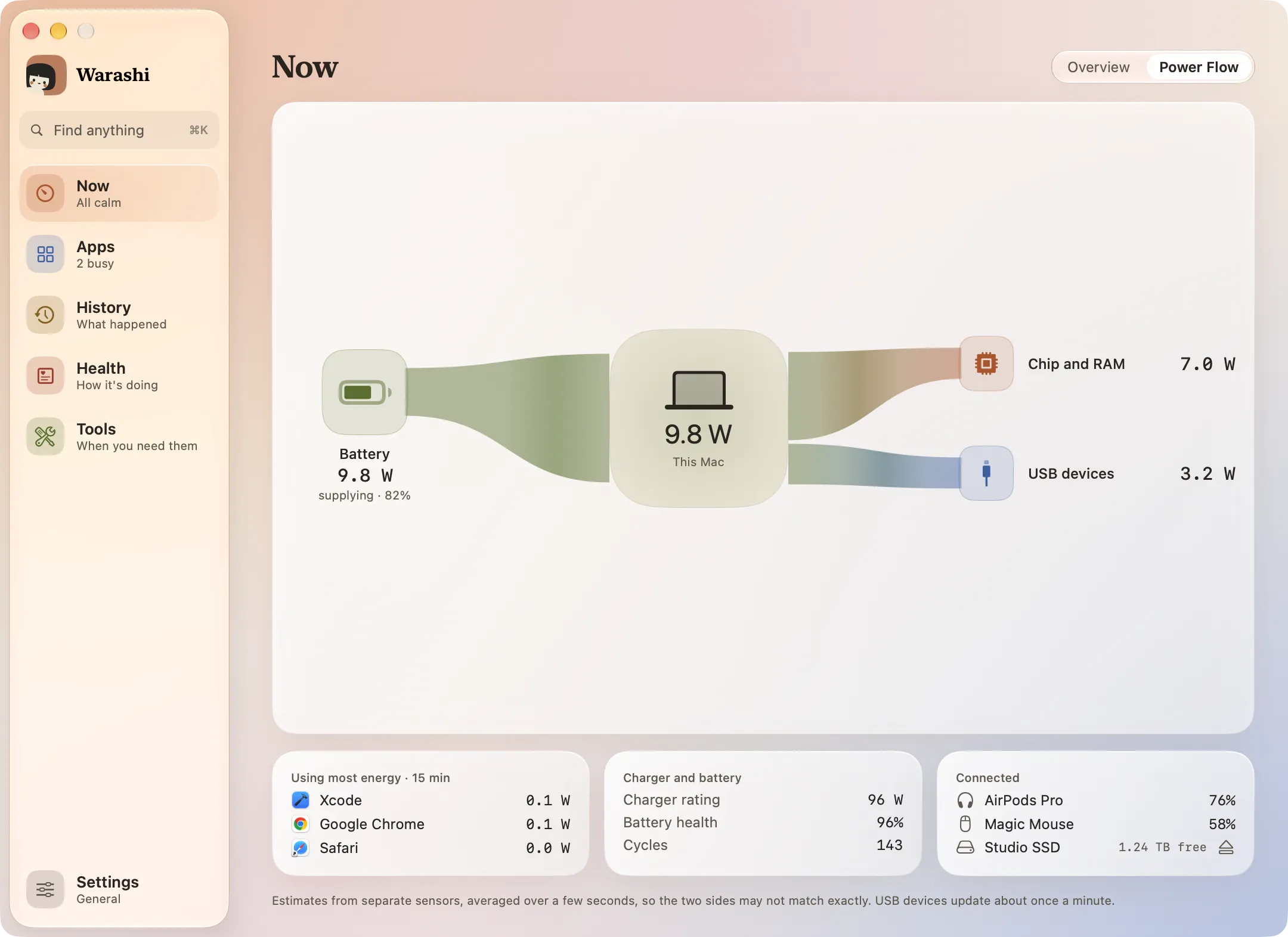
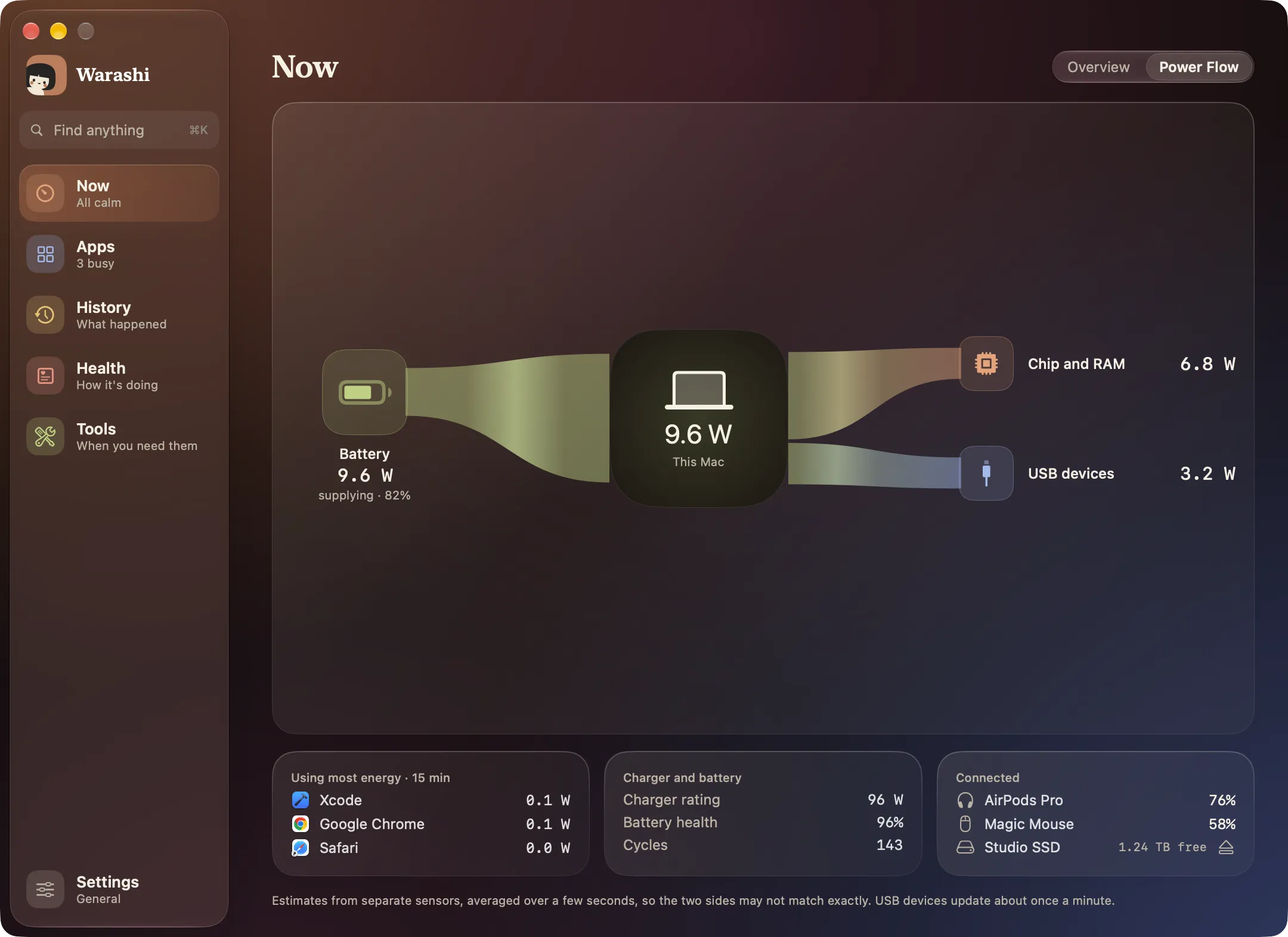
- Read it from left to right
Power starts at the Charger or Battery, passes through This Mac, and ends at Chip and RAM, USB devices and Everything else, such as the screen and Wi-Fi. A thicker channel carries more.
- While it charges
The charger's channel forks: one branch goes straight to the Battery and the other to This Mac. So the number on This Mac is only what the Mac itself is using.
- Focus on one path
Point at a source or destination to dim the others.
What you'll see
| The line at the top says | What's happening |
|---|---|
| Running from the charger. The battery is holding | The charger runs the Mac, and the battery is neither charging nor draining, for example at your charge limit. |
| The charger is running this Mac and filling the battery | Both, with a separate branch to the battery. |
| Running on battery | The battery is the only source. |
| The charger can't keep up | The battery is adding to what the charger delivers. |
Below the diagram: the apps that used the most energy in the last 15 minutes, your charger and battery details, and what's connected.
If something's not right
- There's no Power Flow tab: it needs a battery and a charger reading, so it isn't offered on desktop Macs.
- The light has stopped moving: it holds still with Reduce Motion, in Low Power Mode, or with Settings › General › Lively motion off.
More in Troubleshooting, or email adam@warashi.app.