 Warashi
Everything you keep on screen is set up in one place: Settings › Customize, with three tabs. Each shows the real thing, live, beside your choices. Every change appears straight away, and there's nothing to save.
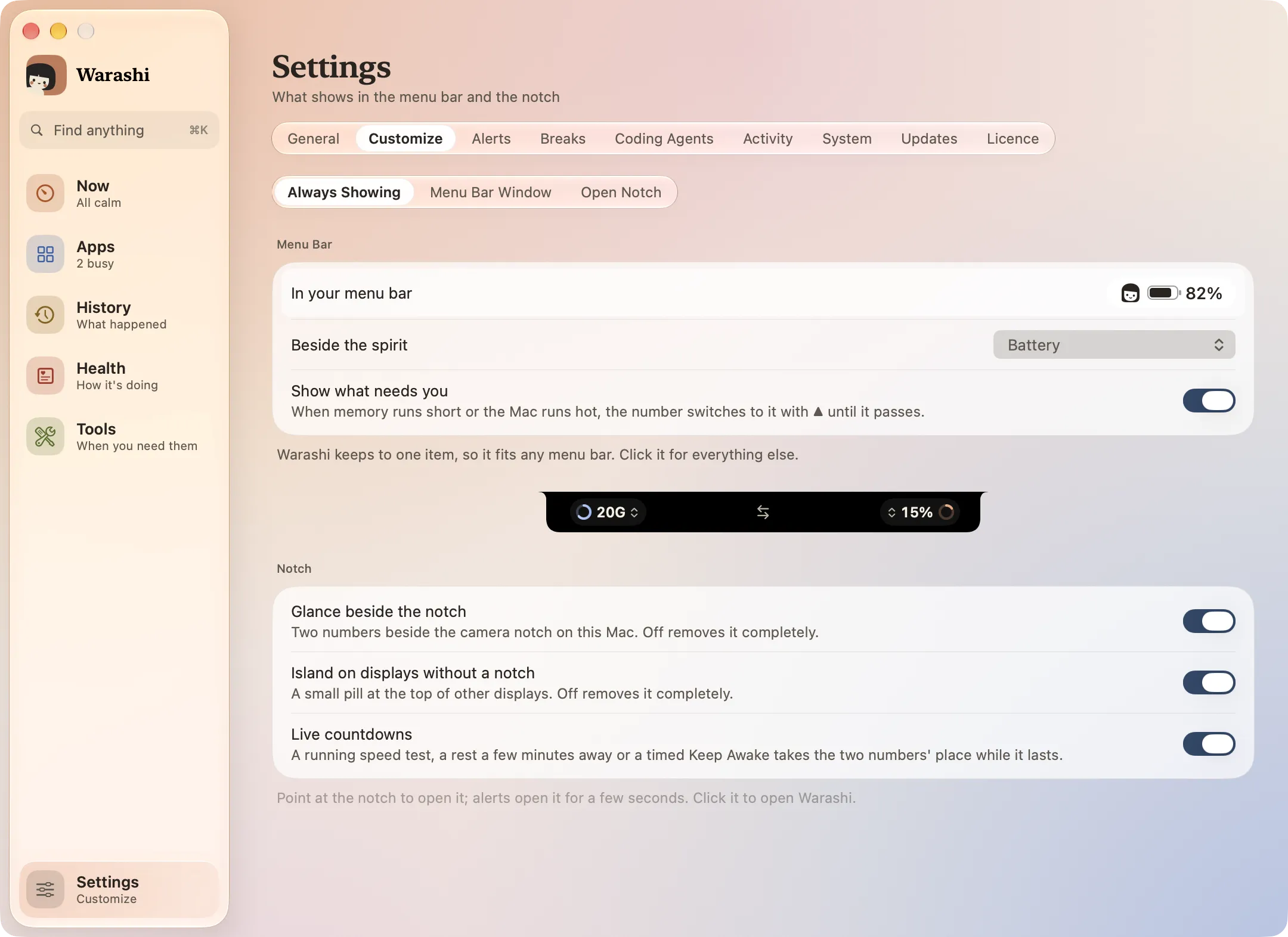
- Always Showing
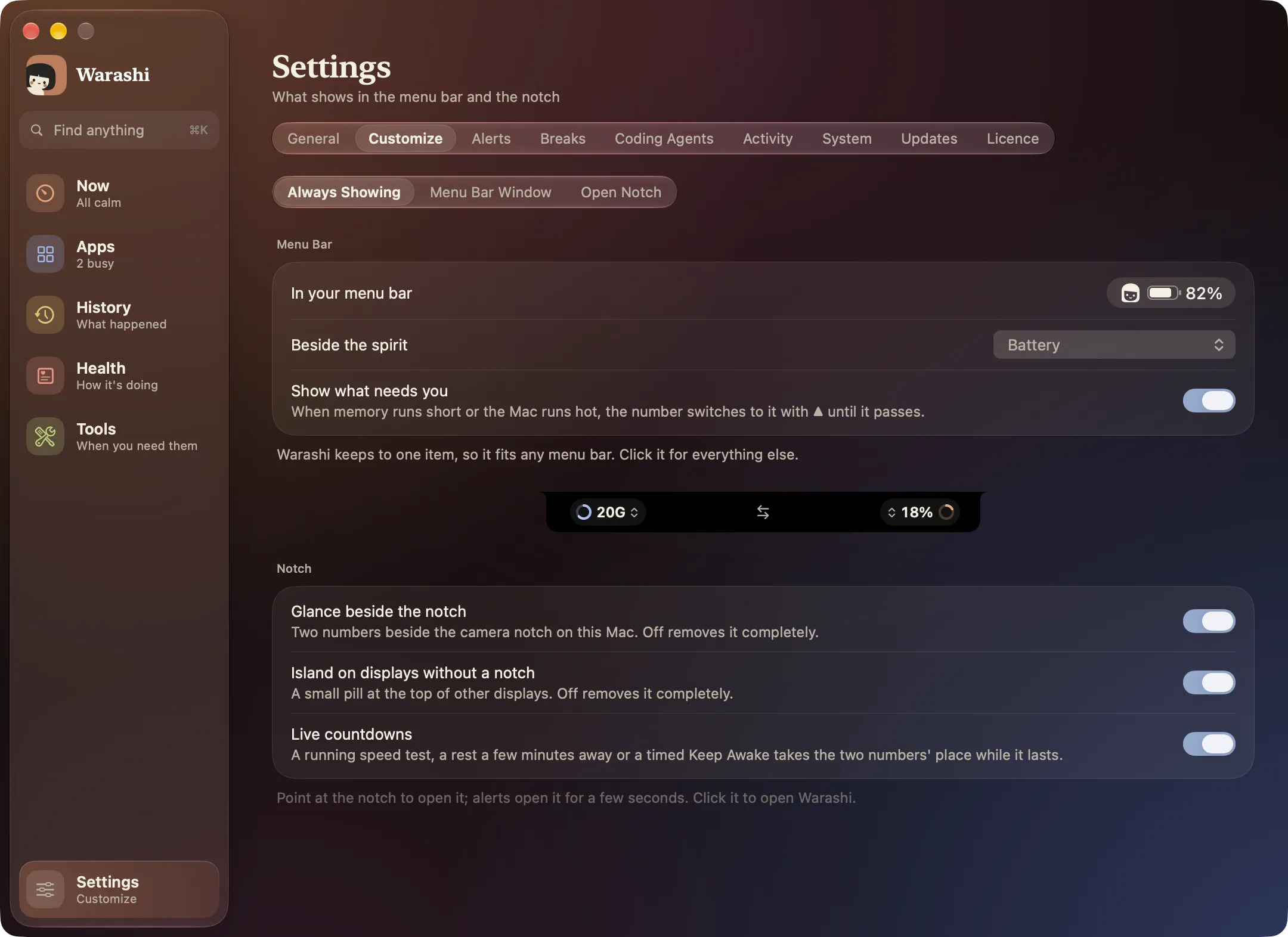
What's on screen all the time. Beside the spirit picks the reading in your menu bar, or Nothing, just the spirit, and Show what needs you lets it switch to a warning. Below, choose what sits left of the notch and right of the notch (the arrows swap them), and switch the notch glance and the island on or off.
- Menu Bar Window
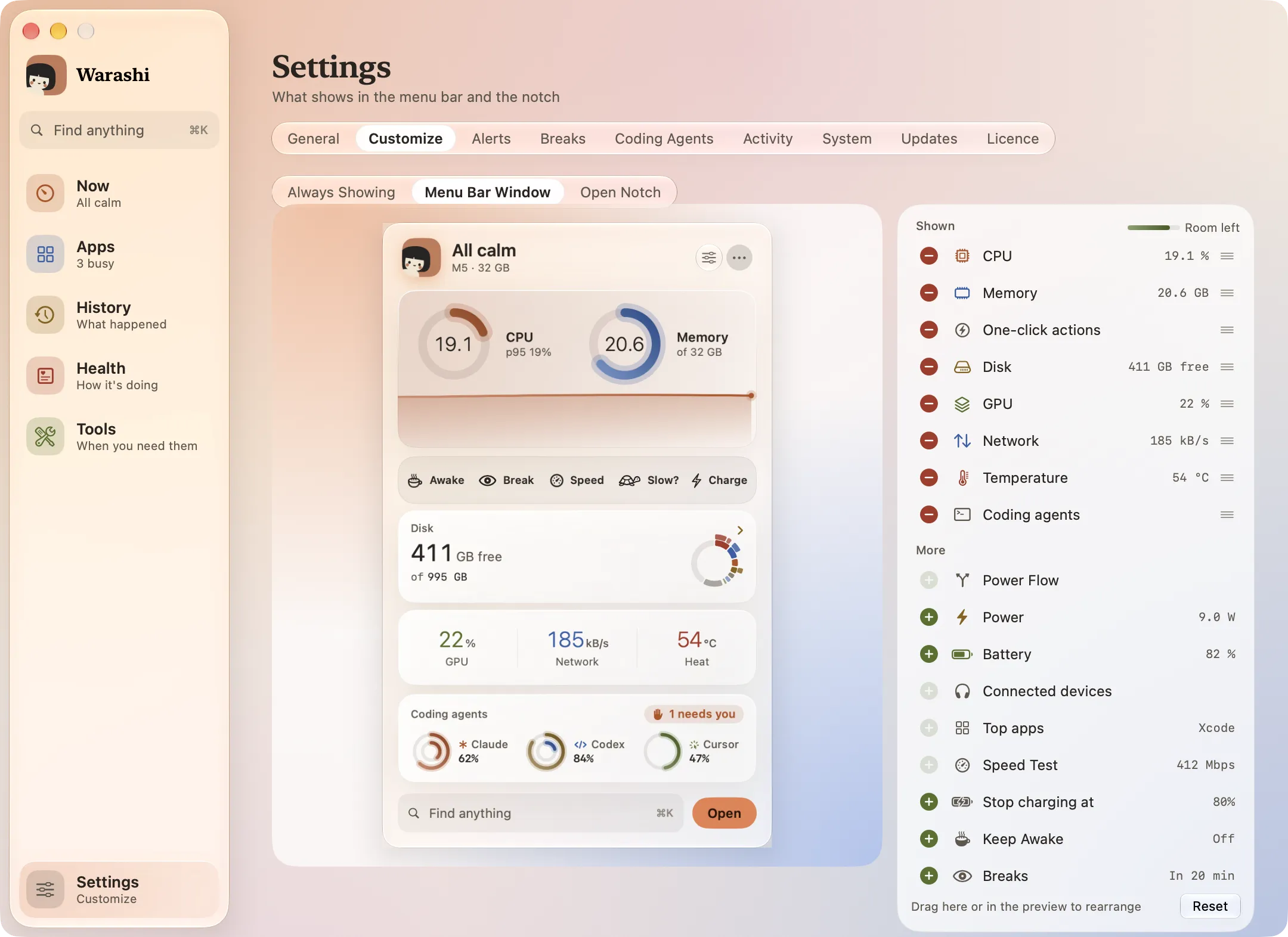
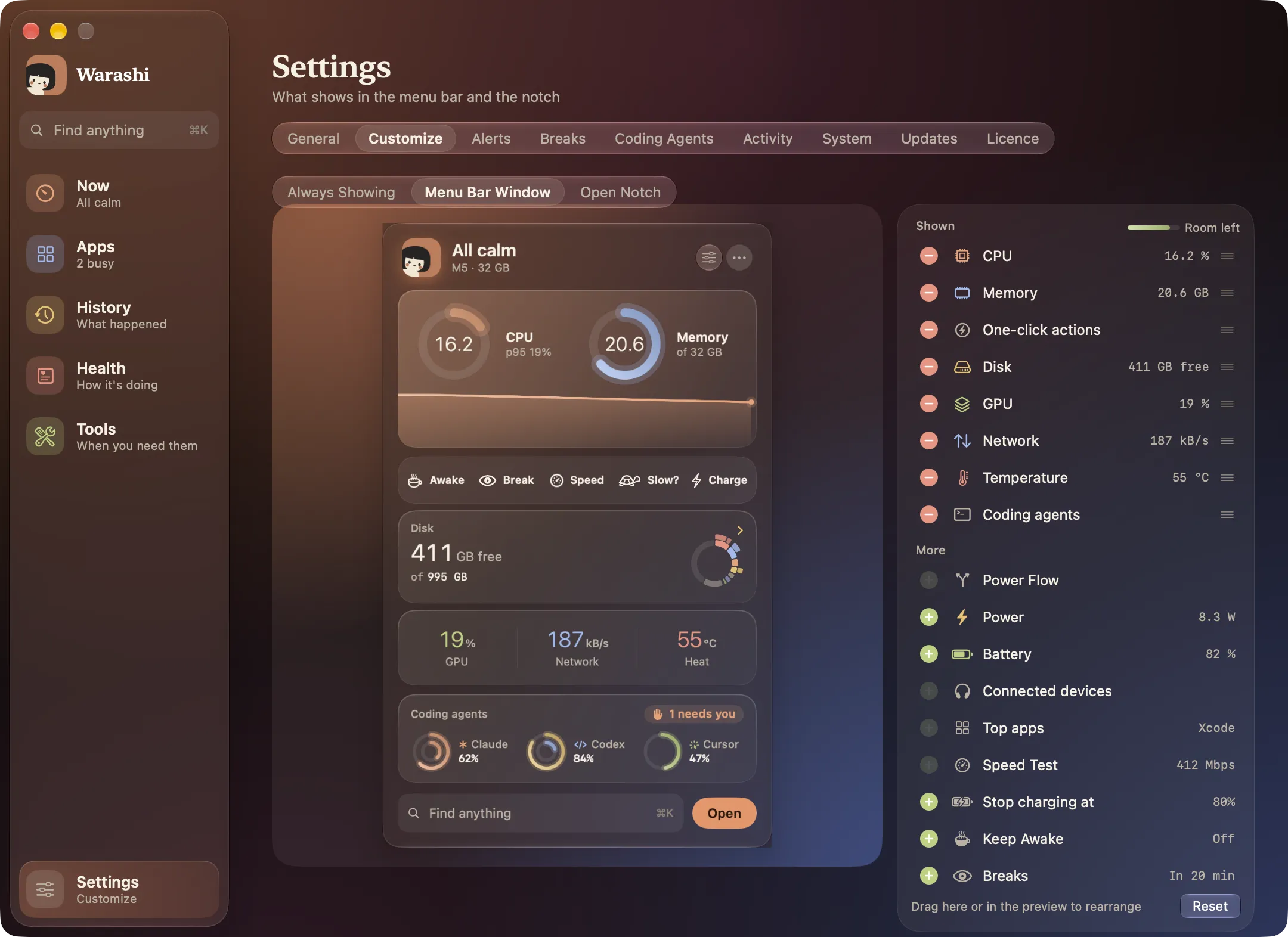
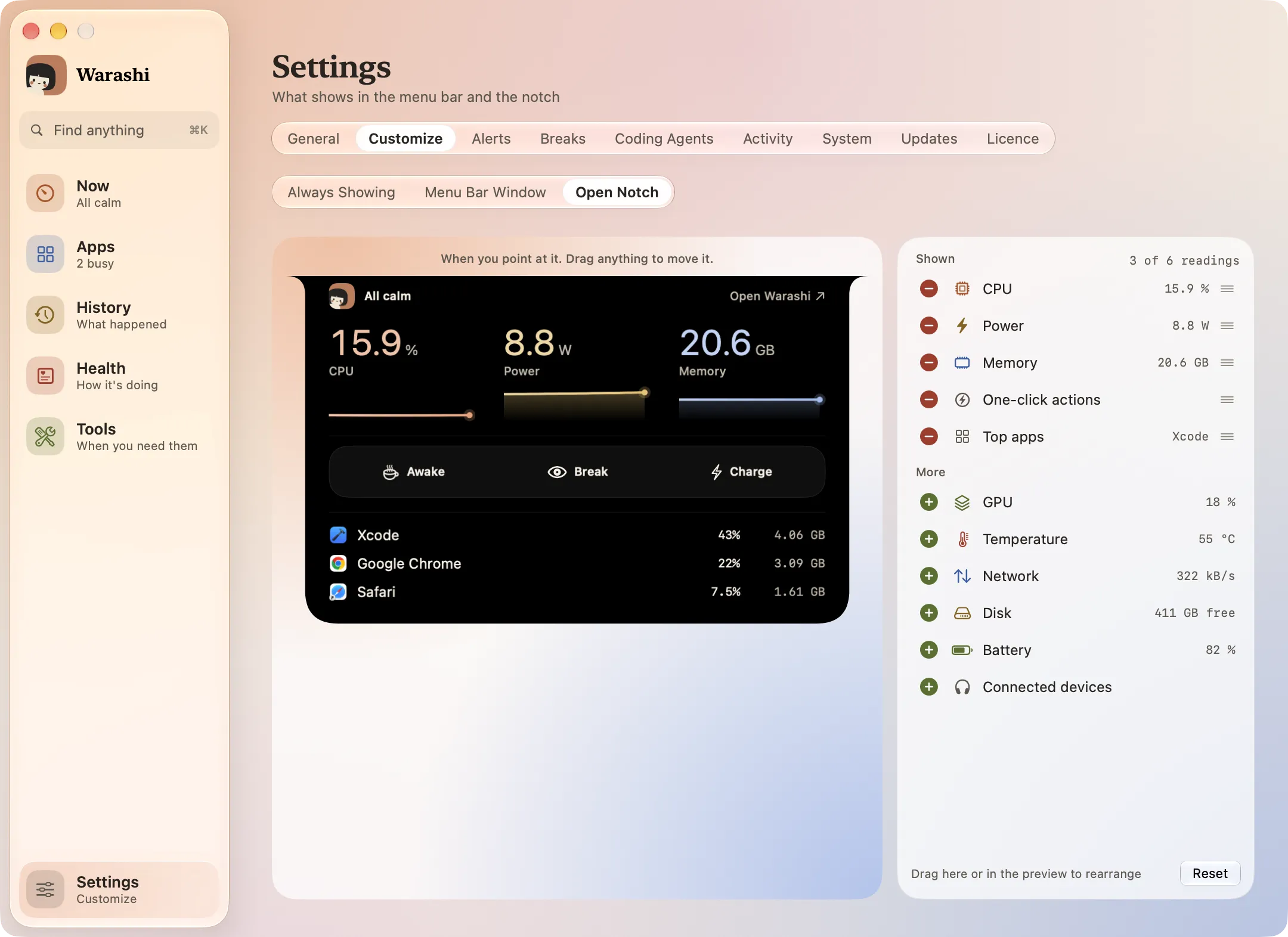
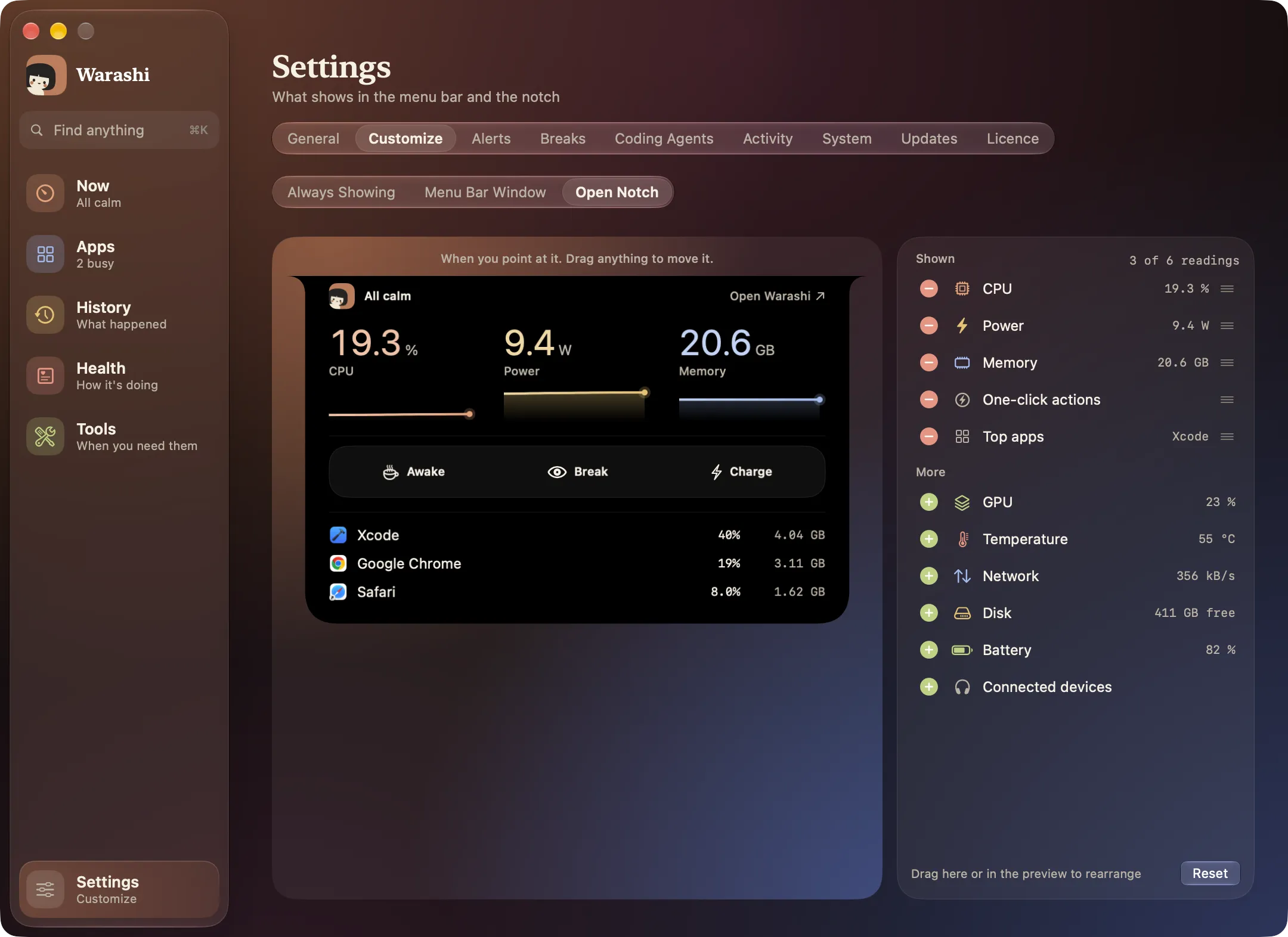
On the left, the menu bar window itself. Under Shown, press − to take something away; under More, press + to add it. Pick anything up in the preview and drop it where you want it: the rest slide aside. A small meter shows how much room is left.
- Open Notch
The same, for the notch when you point at it: up to six readings, plus the top apps, connected devices and one-click actions. The list shows how many of the six you've used.
- Start again
Reset appears once something differs from the default, and puts everything back.
Shortcuts into it
The sliders button at the top of the menu bar window opens the Menu Bar Window tab; the one in the open notch opens Open Notch.
How things arrange themselves
The menu bar window has one maximum size and never scrolls, so it always fits your screen. When it's full, + dims: remove something first. CPU and memory share the top as rings; short readings line up in a row; the rest pair up two by two.
The open notch always lines readings up evenly, so nothing ends up alone on a row:
| Readings | How they sit |
|---|---|
| 1, 2 or 3 | One row |
| 4 | Two rows of two |
| 5 | Three, then two |
| 6 | Two rows of three |
If something's not right
- Something isn't offered: Battery, Power Flow and Stop charging at appear only on Macs with a battery, and Connected only while something is connected. Power Flow, Speed Test, Keep Awake, Breaks and Stop charging at are for the menu bar window, not the notch.
More in Troubleshooting, or email adam@warashi.app.