 Warashi
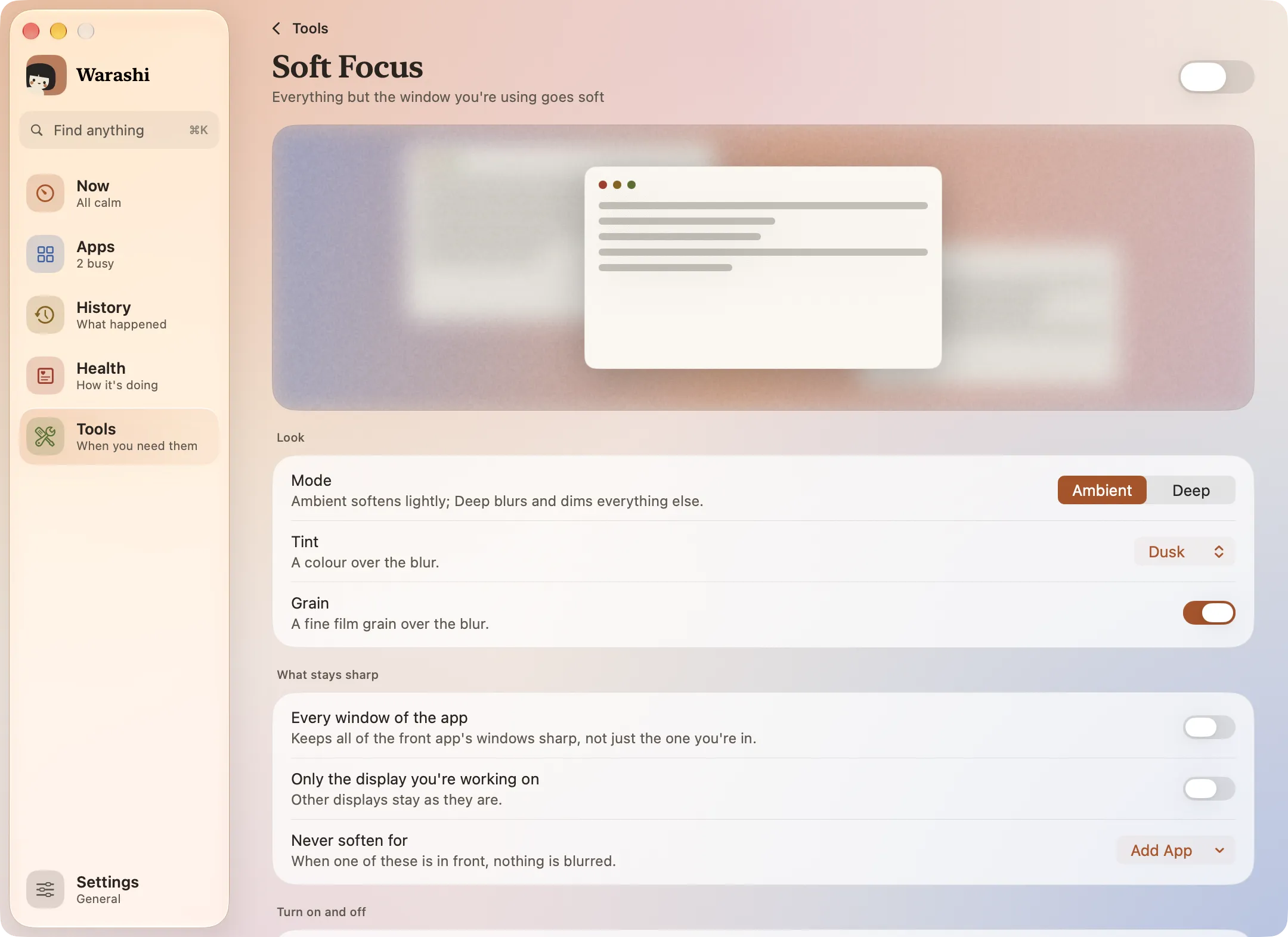
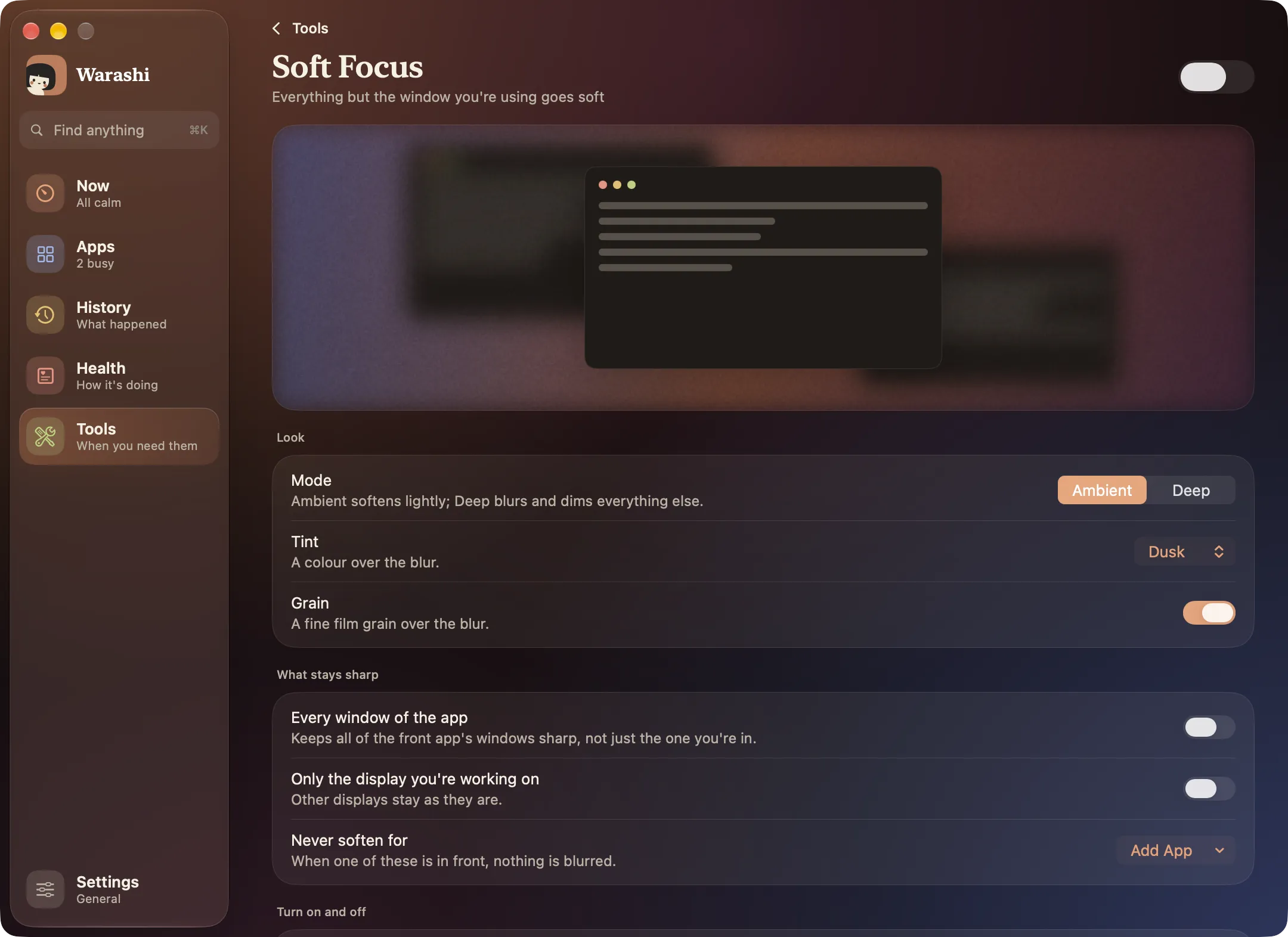
Soft Focus quiets your screen. Every window except the one you're working in softens into a blur, so only your work stays sharp. Click another window and it comes into focus.
- Turn it on
Press Turn On on the Soft Focus card in Tools, or click the card for its page and use the switch at the top. You can also find it with ⌘K.
- Shake or press the shortcut
Once you've turned it on the first time, ⌃⌥⌘F turns it on or off from any app. Switch on Shake the pointer on the Soft Focus page to do the same with a quick side-to-side shake; hold ⇧ and shake to peek at everything until you let go.
- Work as usual
Click any blurred window and it becomes the sharp one. Move or resize it and the sharp area follows. Menus, the Dock and the menu bar always stay sharp.
Settings
- Mode: Ambient softens lightly, Deep blurs and dims everything else.
- Tint lays a colour over the blur: Dusk, Clay or Indigo, or None. Grain adds a fine film grain.
- Every window of the app keeps all of the front app's windows sharp, for example a document and its inspector.
- Only the display you're working on leaves your other displays as they are.
- Never soften for lists apps Soft Focus steps aside for: while one is in front, nothing is blurred.
- Shake the pointer is off until you switch it on: watching the pointer uses a little energy while it moves. Its Sensitivity sets how wide a shake must be. The Keyboard shortcut ⌃⌥⌘F can be turned off.
Good to know: Soft Focus needs no permission. Warashi never sees what's on your screen: macOS does the blurring, and Warashi only knows where the window you're using is. It turns off when your Mac's screen goes to sleep, and starts off when Warashi opens.
If something's not right
- The wrong window is sharp for a moment: after switching windows from the keyboard, the sharp area catches up within half a second.
- A shake doesn't do anything: switch on Shake the pointer on the Soft Focus page, then try a quicker shake or raise the sensitivity.
More in Troubleshooting, or email adam@warashi.app.