 Warashi
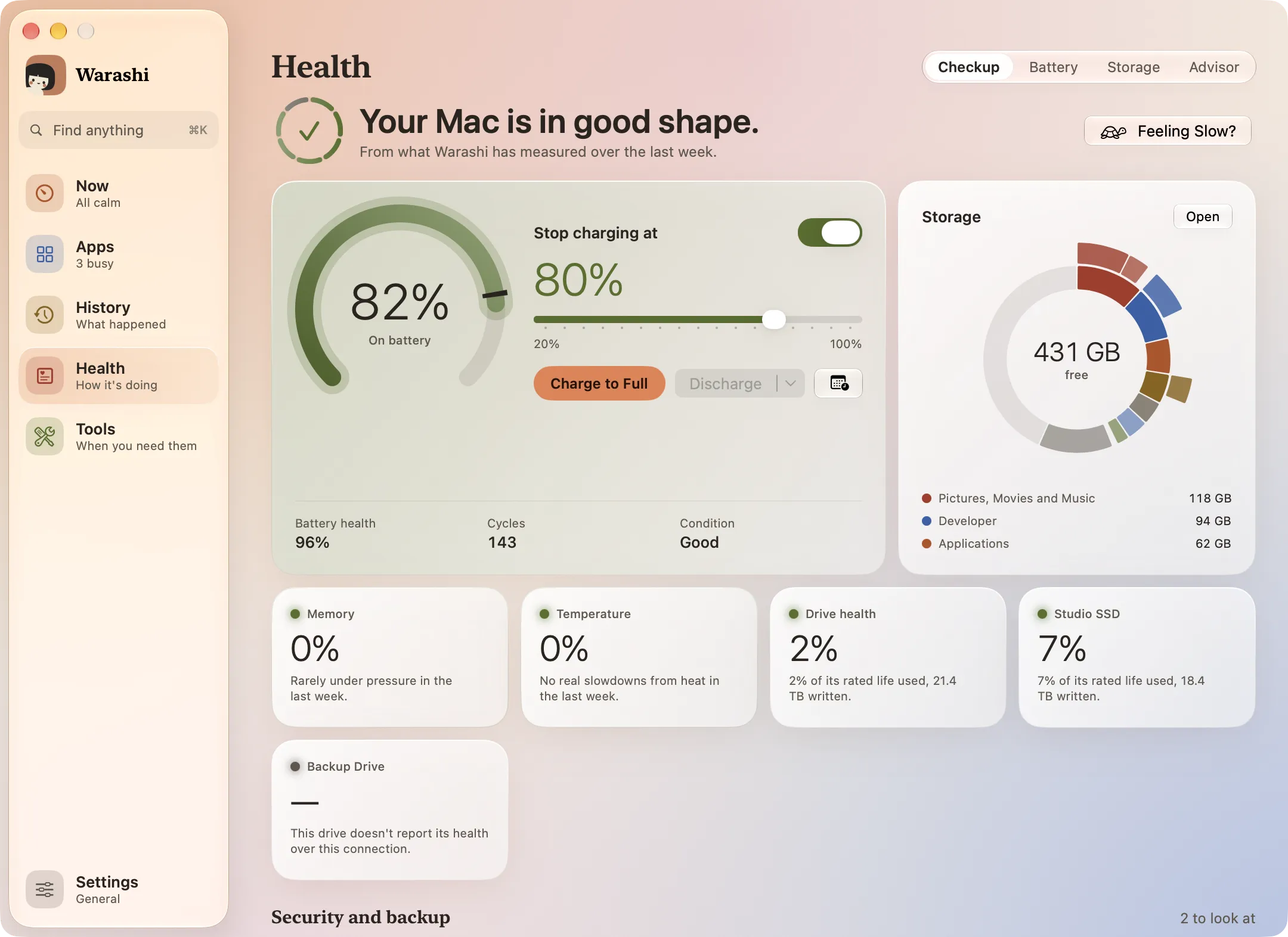
Checkup is the first tab in Health (⌘4). It looks at the last week and answers one question: is your Mac in good shape?
The verdict
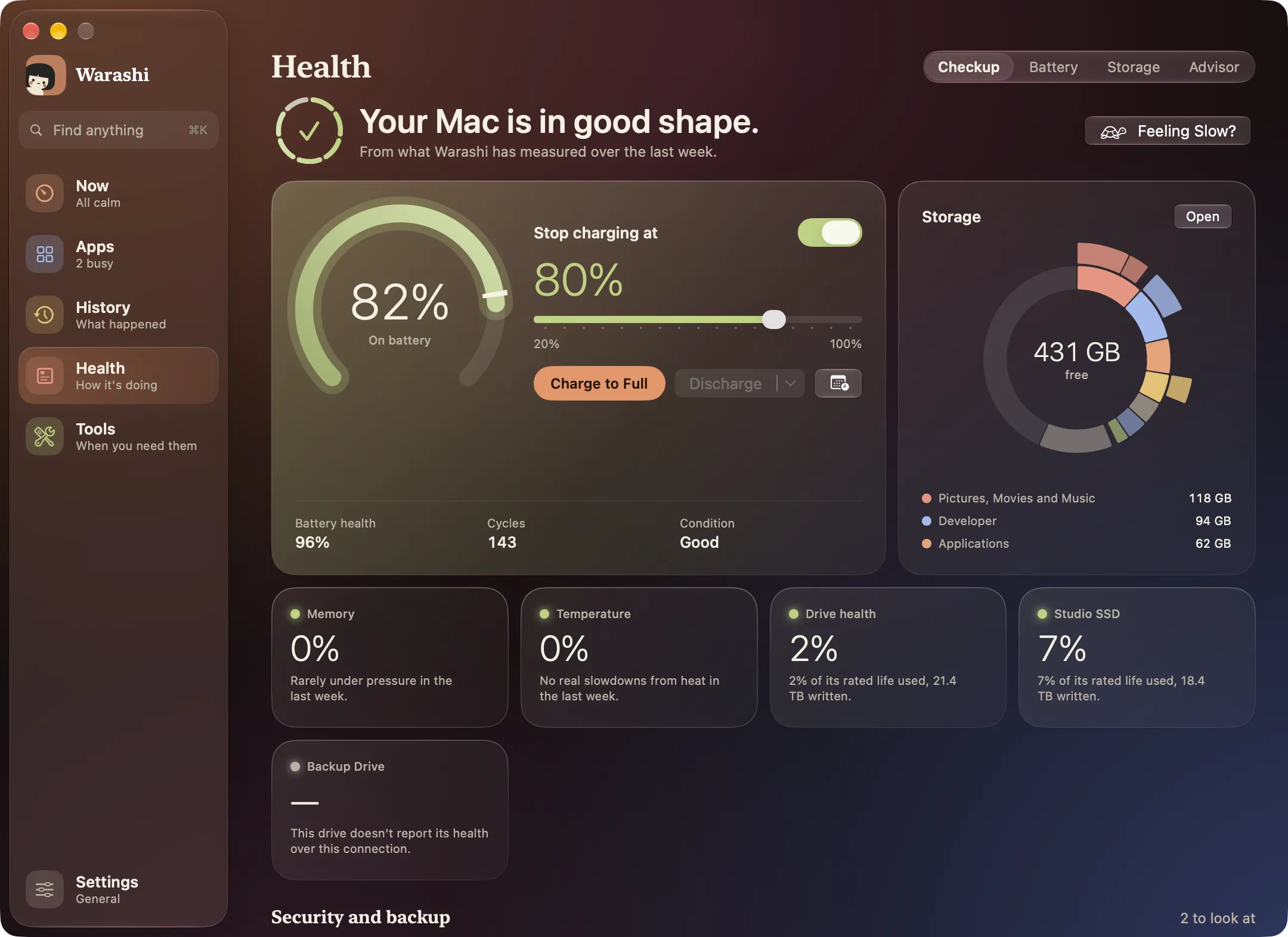
At the top: Your Mac is in good shape., or what to look at, in plain words. Beside it, a ring with one segment for each thing checked, each in its own colour: green when fine, amber when worth a look, grey when it can't be read. It's worked out from what Warashi has measured over the last week, and refreshed every few minutes.
What it looks at
| Card | What it shows | When it asks you to look |
|---|---|---|
| Battery | Charge, health, cycles and condition, with the charge limit right beside it | Health under 85%; act under 80% |
| Storage | Free space and what fills your disk, from your last Storage scan | Under 15% free; act under 10 GB |
| Memory | How much of the week your Mac spent short of memory | A third of the week or more |
| Temperature | How much of the week macOS slowed your Mac to cool it | 2% of the week or more |
| Drive health | How much of your SSD's rated life is used | 70% or more, or any errors |
| External drives | The same for each connected drive that reports its health | 70% or more, or any errors |
Press Memory to see the apps behind it, Temperature for its history, or Open on Storage.
Why is my Mac slow?
The week can look fine while right now feels slow. Press Feeling Slow? beside the verdict, or type “slow” in Find anything, then keep doing what felt slow. Warashi watches for ten seconds, compares what it sees with your Mac's usual week, and names the most likely cause, with its numbers and one thing to do:
- Heat: macOS is slowing your Mac to cool it.
- Memory: your Mac is short of memory and moving it to disk, with the apps holding the most.
- One app: a single app is using most of the processor, against its usual level. Show in Apps opens it.
- macOS's own work: Spotlight indexing, a Time Machine backup, Photos analysing your library or an update being prepared. These finish by themselves.
- Many apps at once, a nearly full disk or Low Power Mode.
- Nothing: if nothing stands out, it says so, with the numbers it saw. A slow website is more likely your connection, so it offers a speed test.
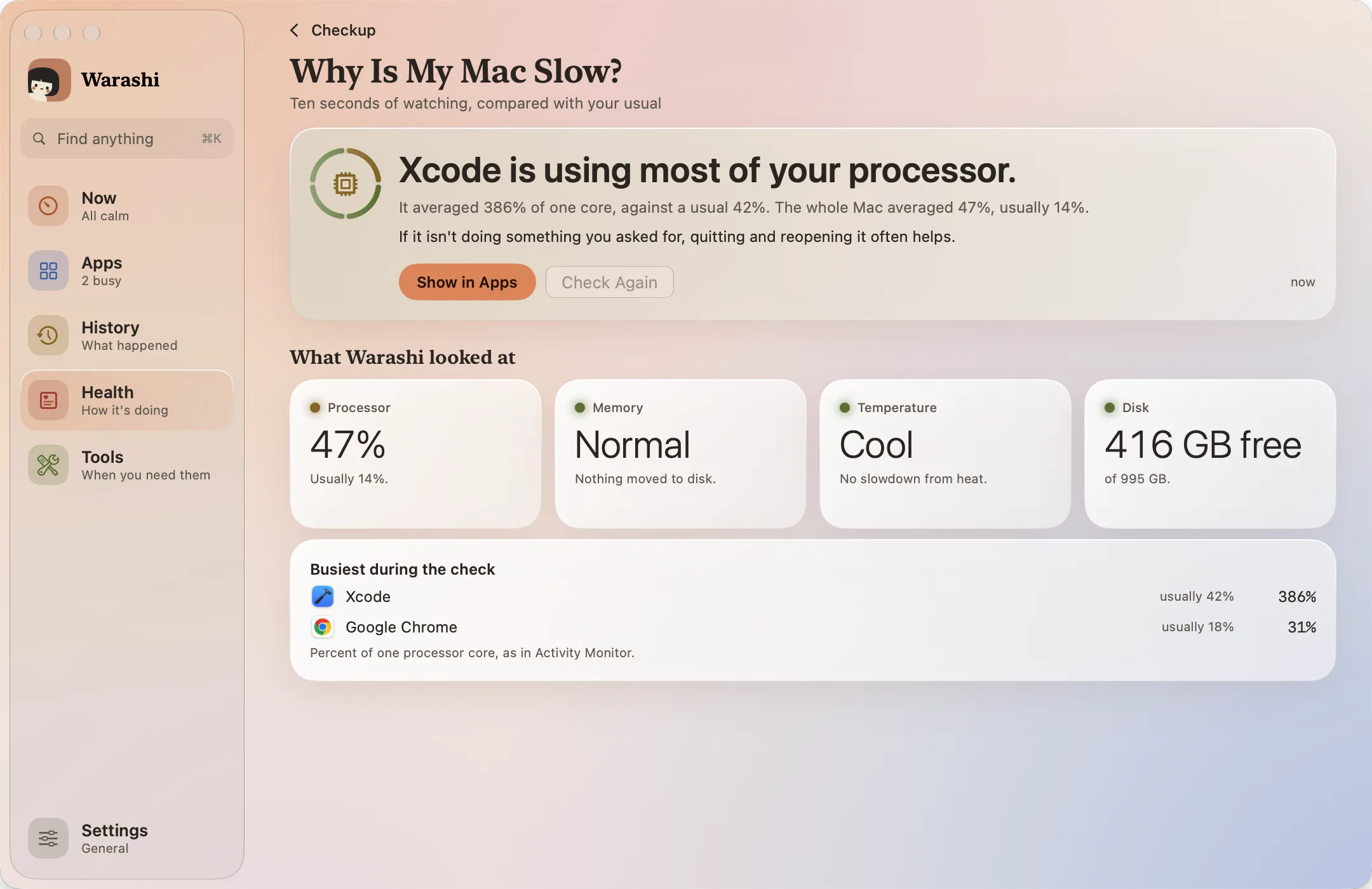
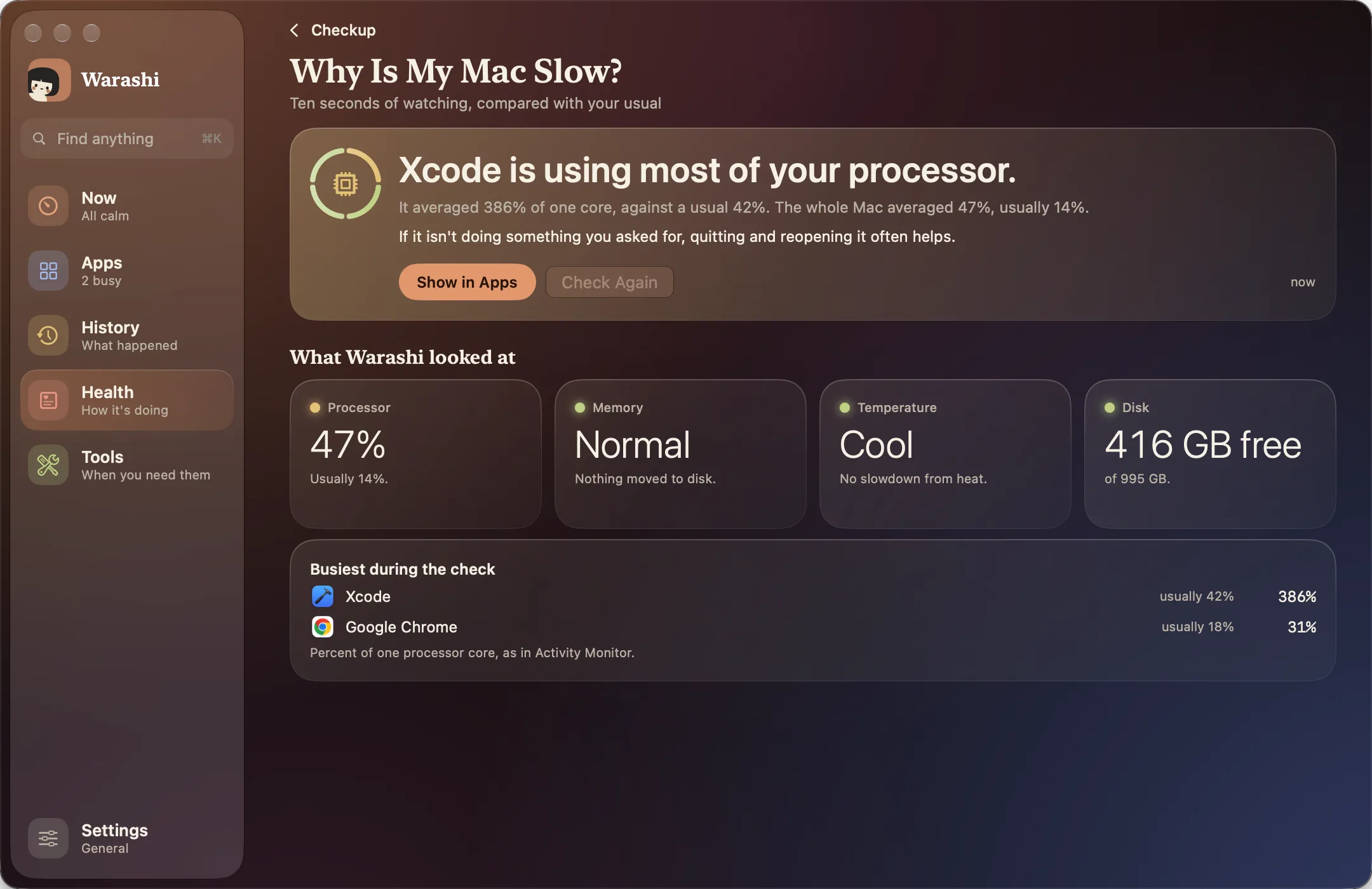
Below the answer, What Warashi looked at shows the processor, memory, temperature and disk, and the busiest apps during the check. Nothing is recorded beyond your normal history.
Security and backup
Nine tiles show how well your Mac is protected. Press one to open the place in System Settings where it's changed.
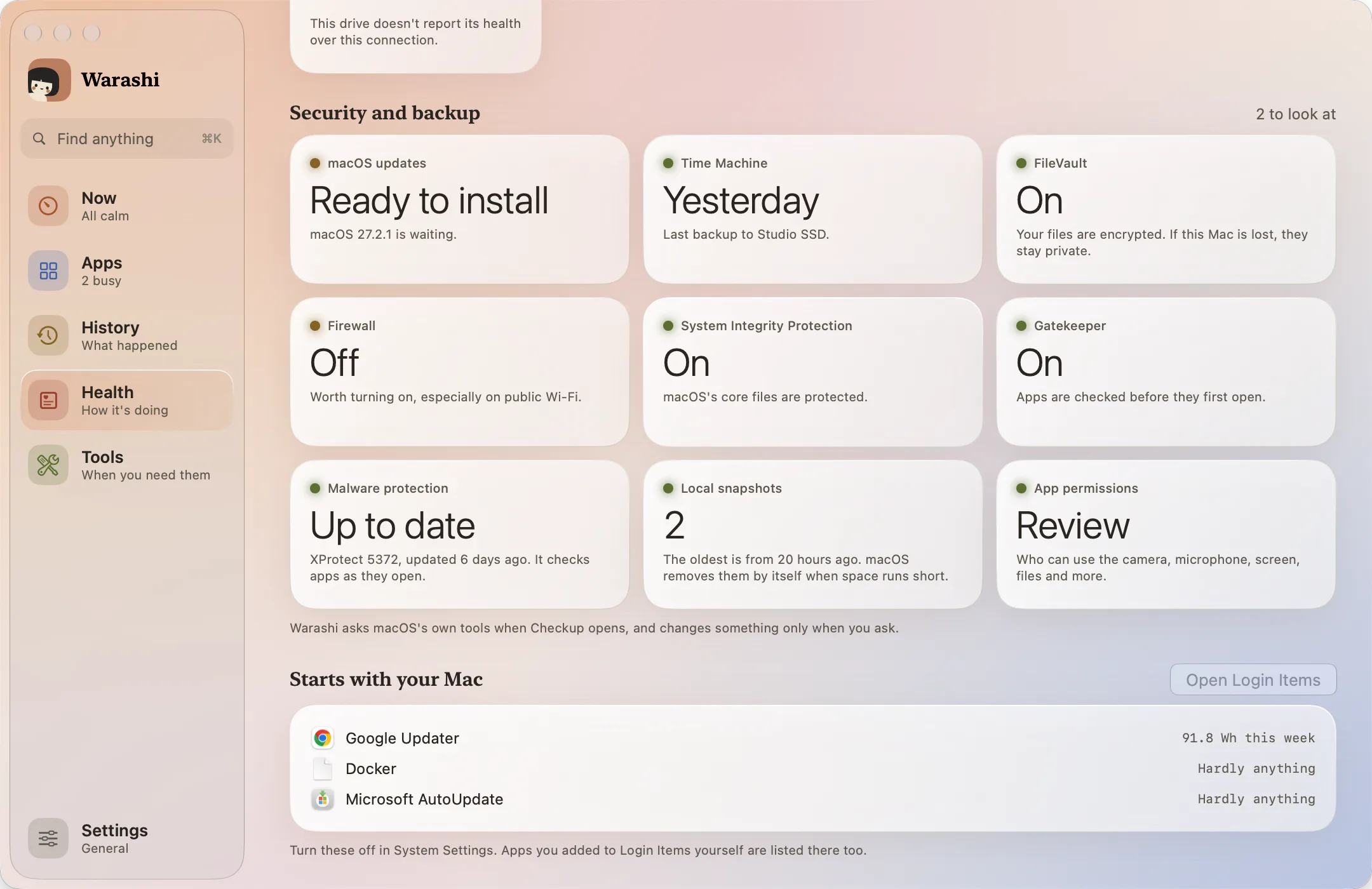
| Tile | What it shows | When it asks you to look |
|---|---|---|
| macOS updates | Whether a macOS update is waiting, and when macOS last checked | An update is ready to install |
| Time Machine | When your Mac last backed up, and to which disk | Not set up, or no backup for a week |
| FileVault | Whether your files are encrypted | Off |
| Firewall | Whether unwanted incoming connections are blocked | Off |
| System Integrity Protection | Whether macOS's core files are protected | Off |
| Gatekeeper | Whether apps are checked before they first open | Off |
| Malware protection | XProtect, the malware protection built into macOS: its definitions' version and when Apple last updated them. Press it, then Check Apps, to check every app and login item's signature on your Mac: anything no identified developer signed, or changed after signing, is listed with what to do | No update for a month, which means security responses aren't reaching this Mac |
| Local snapshots | How many copies Time Machine keeps on the disk itself, and the oldest. macOS removes them by itself when space runs short; press it, then Free Up Space, to have macOS remove them now. Your backup disk isn't touched | Never: they're normal |
| App permissions | A list of the privacy pages in System Settings (camera, microphone, screen recording, Full Disk Access and more), each a click away | Never: it's a guide |
Warashi asks macOS's own tools when Checkup opens, and changes something only when you ask. Seeing the date of the last backup needs Full Disk Access.
To be told without opening Checkup, turn on Backup overdue and macOS update waiting in Settings › Alerts. While either is on, Warashi reads these once a day and tells you once: when Time Machine hasn't backed up for a week, and when an update has been waiting for a week.
Homebrew
If you use Homebrew, Checkup shows how many of your packages have a newer version, with the first few and their versions, and how old Homebrew's own list is (it's only as fresh as your last brew update). Copy Update Command copies brew update && brew upgrade for Terminal, since an upgrade can take a while and ask for your password. Old versions and downloads shows what brew cleanup would free, and Clean Up… runs it after you confirm. Warashi asks Homebrew with its automatic update turned off, so nothing goes online.
Starts with your Mac
Below, everything that has installed itself to start with your Mac, costliest first, with the energy each used this week. Open Login Items takes you to System Settings to turn any of them off.