 Warashi
Looking at a screen for hours tires your eyes and your back. Breaks reminds you to look away now and then, to step away in a rhythm that suits you, and waits politely when you're busy. It's off until you turn it on.
- Open Breaks
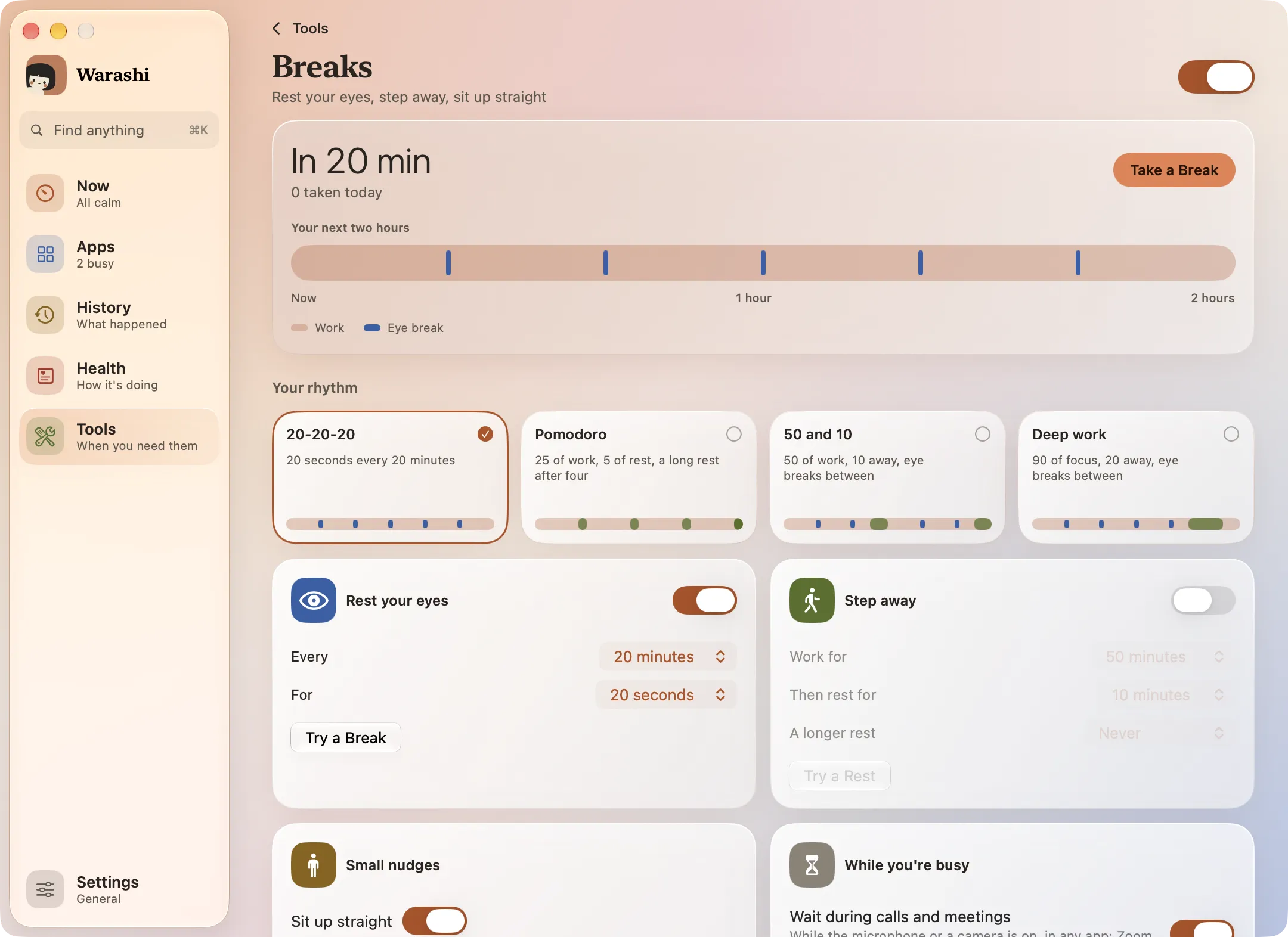
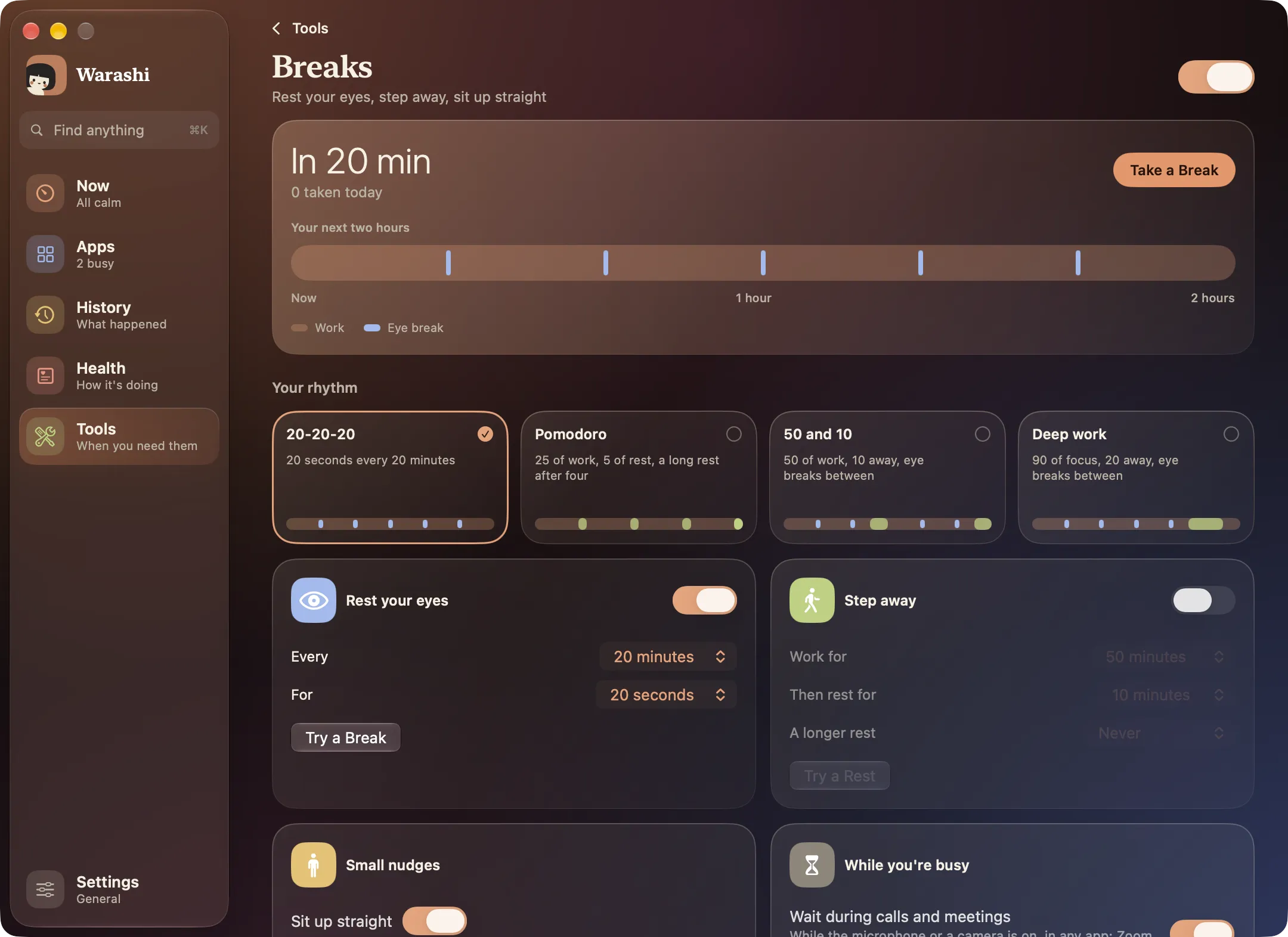
Click the Breaks card in Tools, or Open Breaks in Settings › Breaks. Switch it on with the switch at the top. At the top of the page: when your next break is, and Your next two hours, a bar of your work, eye breaks and rests from where your timers are now.
- Pick a rhythm
Click one of the four cards under Your rhythm, each with a small bar of its pattern: 20-20-20 (the default: every 20 minutes, look far away for 20 seconds), Pomodoro (25 minutes of work, 5 of rest, and 15 after every fourth), 50 and 10, and Deep work (90 minutes, then 20). Change anything below and it becomes Custom.
- Or set your own
In the tiles below: Eye breaks come Every 5 to 60 minutes, For 10 to 60 seconds. Rest breaks take you away from the screen: Work for 15 to 120 minutes, Then rest for 2 to 30, and, if you like, A longer rest every 2 to 5 rests. Try a Break and Try a Rest show you one now.
- A heads-up first
Fifteen seconds before a break, a small pill under the menu bar says Break in 0:15, with Start Now, +5 min and Skip. Each button lights up under the pointer.
- Take the break
The break blurs every display behind a slow, breathing glow of colour, with a countdown and a plain “Look away from the screen.” (for a rest, “Step away from your Mac.”) above one suggestion, such as “Look at something far away.” With Reduce Motion on, the glow stays still. A soft chime tells you when it's over. Skip, or Esc, ends it early.
Small nudges
Between breaks, small moments that last about four seconds and never take your clicks. Sit up straight rises from the bottom of your main display to its centre while its little figure straightens, so your eyes, and your head, follow it up (every 30 minutes by default, or every 5 to 90). The others grow out of the notch, each with a small drawing that does what it asks, and are off until you turn them on:
- Blink: an eye blinks twice. Every 5 to 30 minutes.
- Stretch: arms reach up overhead. Every 30 minutes to 2 hours.
- Drink some water: a glass fills up. Every 30 minutes to 2 hours.
- Relax your jaw: a clenched face lets go. Every 15 to 60 minutes.
When two are due together, the second waits two minutes, so they never pile up.
How rests and eye breaks fit together
- An eye break due within five minutes of a rest is left out: the rest covers it. A rest also starts the eye break, Sit up straight, Stretch and Drink some water timers again.
- Being away from your Mac for as long as a rest counts as that rest.
- Sleep or locking your screen starts the work timer again, but Pomodoro remembers how many rests you've had.
It waits while you're busy
- A break that's due waits during calls and meetings in any app: while a camera is on, or while an app both listens and speaks, as every call does. Dictation (Wispr Flow, macOS dictation) only listens, so it never holds a break back (switch off Wait during calls and meetings to have breaks come anyway), and while a full-screen game is in front. It also waits while another app keeps the screen awake, such as a video or a presentation, for 10 minutes at most (a browser can hold the screen awake for a paused or muted clip), unless you switch off Wait while a video plays. Once the countdown shows, only a camera stops it. Tools shows Waiting.
- Once the 15-second heads-up shows, the break keeps its promise: it counts down to zero, and only a call still on at that moment holds it back.
- Time away counts: five minutes away from the keyboard and mouse, sleep or locking your screen starts the eye break timer again.
- Warashi only checks this at the moment a break is due, records none of it, and needs no permissions.
Work hours
Turn on Work hours on the Breaks page, choose your days and set From and Until. Outside those hours, breaks and nudges stay quiet, and the Breaks tile says when they're back. Hours can run past midnight, for a night shift. Starting again counts as a fresh start, as after sleep.
During a Focus
Breaks can wait while a Focus is on, such as Do Not Disturb or Work. In System Settings › Focus, choose the Focus, add Warashi under Focus Filters, and turn on Pause breaks and nudges. Open Focus Settings on the Breaks page takes you there. No permission is needed: macOS tells Warashi when that Focus begins and ends.
Start one yourself
Press Break in the menu bar window or the notch, Take a Break in Tools, or turn on Start a break with ⌃⌥⌘B on the Breaks page. That shortcut works even when reminders are off; press it again to end the break.