 Warashi
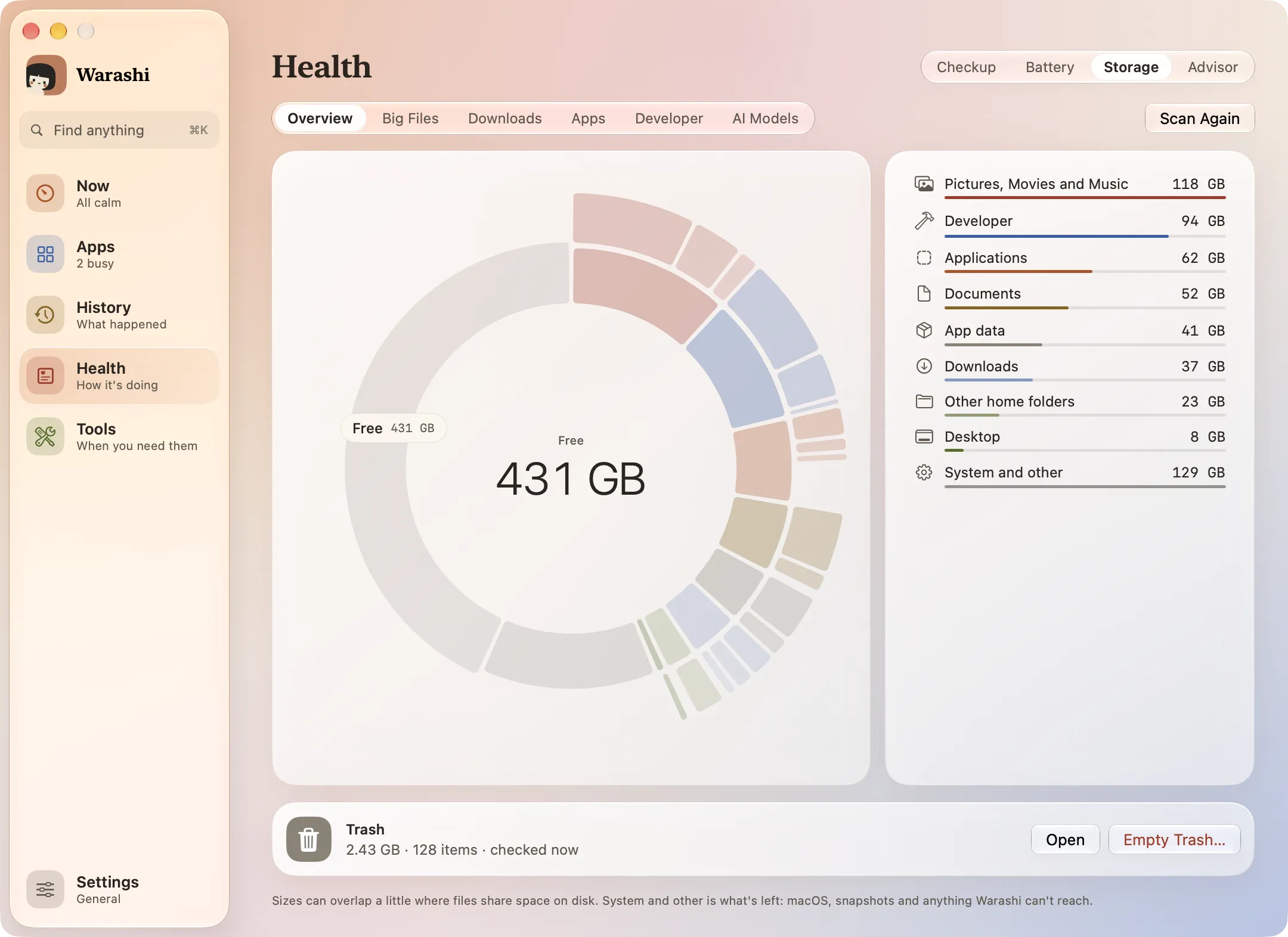
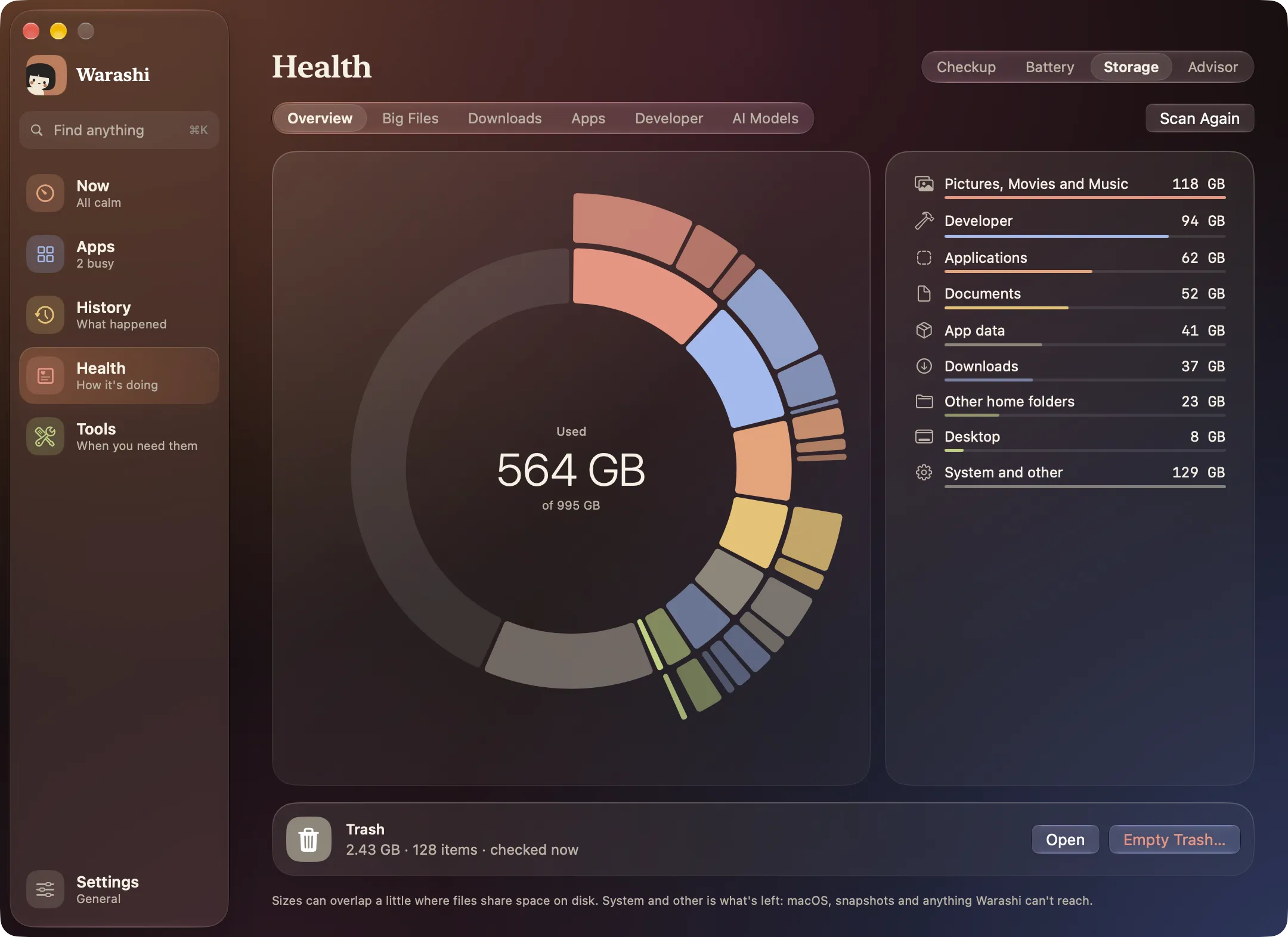
Storage is a tab in Health. It shows what's using your startup disk. It opens with your last results and updates them if they're more than six hours old. Anything you remove goes to the Trash, after you say yes, so you can put it back until you empty it.
- Open Storage
Choose Health, then Storage, press the Disk tile on Now or in the menu bar window, or Open on Checkup's storage card.
- Switch on Full Disk Access
If you didn't do this in the welcome tour, a card offers it. Press Open System Settings and turn on Warashi in the list, once. That lets Storage include Desktop, Documents, Downloads, photos and app data. Warashi reads sizes only, never your files, and nothing leaves your Mac. You can skip this: Storage measures the rest and macOS never interrupts.
- Explore the ring
The inner ring is your categories, plus System and Free. The outer ring is the biggest folders in each. Point at any part to see its name and size; the rest dim and its row lights up in the list.
- See what's inside
Choose a category to see its largest items. The chevron beside a folder steps into it, measuring everything inside, and you can keep going down level by level. The magnifying glass shows an item in Finder. Your own files have a trash button too.
- Scan whenever you like
Press Scan Again at any time. You can leave the page while it scans. By itself, Storage scans again when you open it and the last scan is more than a day old, and never on battery or in Low Power Mode: a scan reads a lot of the disk, so it waits for the charger unless you ask.
- Empty the Trash
Under the ring, the Trash card shows how much is in the Trash and how many items, including the Trash on connected drives. It checks when you open the page and every two minutes while it stays open. Empty Trash… asks first, says how much will go, and then deletes it for good, with a count as it goes. Anything in use stays, and the card says so. What only an administrator can delete, such as an app an installer put in Applications, Warashi hands to Finder, which asks for your password. The first time, macOS asks whether Warashi may control Finder: allow it, or the card says what stayed, with Open Automation.
The other tabs
- Clean Up: everything that could go, in three groups. Safe to clean: app and browser caches, logs, Xcode's build data and package downloads, all of which come back by themselves; Move All to Trash… moves them together after one question. Look first: installers in Downloads over a week old, second copies of a download (such as
Report (1).pdf) and the copies Mail keeps of attachments you opened. Handle with care: iPhone and iPad backups, which may be the only copy. Caches of apps that are open, and macOS's own, are left alone. Downloads, Mail, Safari and backups need Full Disk Access. The Trash card sits underneath, and after emptying it says how much space came back. The Clean Up card under the ring on Overview shows how much is safe to clean. - Big Files: files over 100 MB, sorted biggest or oldest first.
- Downloads: everything in your Downloads folder, oldest first, with installers marked: those are usually done with once the app is in place. Needs Full Disk Access.
- Apps: every app you installed, those not opened in three months first. Remove… lists the app and what it left in your Library (app data, caches, settings, saved windows, logs and, with Full Disk Access, sandbox data), each with its size and a tick, and moves the ticked ones to the Trash. Quit the app first. If macOS refuses, allow Warashi under App Management in System Settings. Apple's own apps aren't listed. At the end, Left by apps you've removed lists what apps you've already deleted left in your Library, by their identifier, untouched for at least a month. Anything from a developer with an app still installed, shared data and Apple's own are never listed.
- Developer: what developer tools fill and fill again: each project's
node_modules, Xcode's build products, device support and caches, and the download caches of Homebrew, npm, Yarn, pnpm, Bun, pip, CocoaPods, Swift Package Manager, Gradle, Cargo and Go. Each row says whether it comes back by itself, and goes to the Trash after you confirm. Xcode archives are listed too, marked as not coming back. Simulators over 500 MB are listed by device and iOS version with when you last used them; Delete… removes one with Xcode's own tool, with its apps and data. If you use Docker, Clean Up… lets Docker remove images no container uses, build cache and stopped containers; running containers and volumes stay. Projects in Documents, Downloads and Desktop are looked at only with Full Disk Access. - AI Models: models from Ollama, LM Studio and Hugging Face, with their sizes. LM Studio and Hugging Face models can go to the Trash. Ollama shares files between models, so Copy Command gives you its own
ollama rmto run in Terminal.
What the categories mean
- Developer: Xcode data and Simulators.
- App data: everything in your Library folder, apart from Developer.
- Trash: what's waiting to be emptied.
- Other home folders: anything else directly in your home folder, such as a Code folder.
- System and other: what's left: macOS itself, snapshots, and places Warashi can't read. The note under the ring says how much of it is purgeable.
If something's not right
- Some places need Full Disk Access: press that line in the list, then Open System Settings. If Warashi isn't in the list, drag its icon in. If it still isn't counted, press Reopen Warashi.
More in Troubleshooting, or email adam@warashi.app.