 Warashi
Speed Test measures your connection using Apple's built-in network test. It runs only when you press the button.
- Open Speed Test
Press Open on the Internet Speed tile in Tools, Speed or Network in the menu bar window, or find it with ⌘K. You can also add Speed Test to the menu bar window and run a test without opening the window.
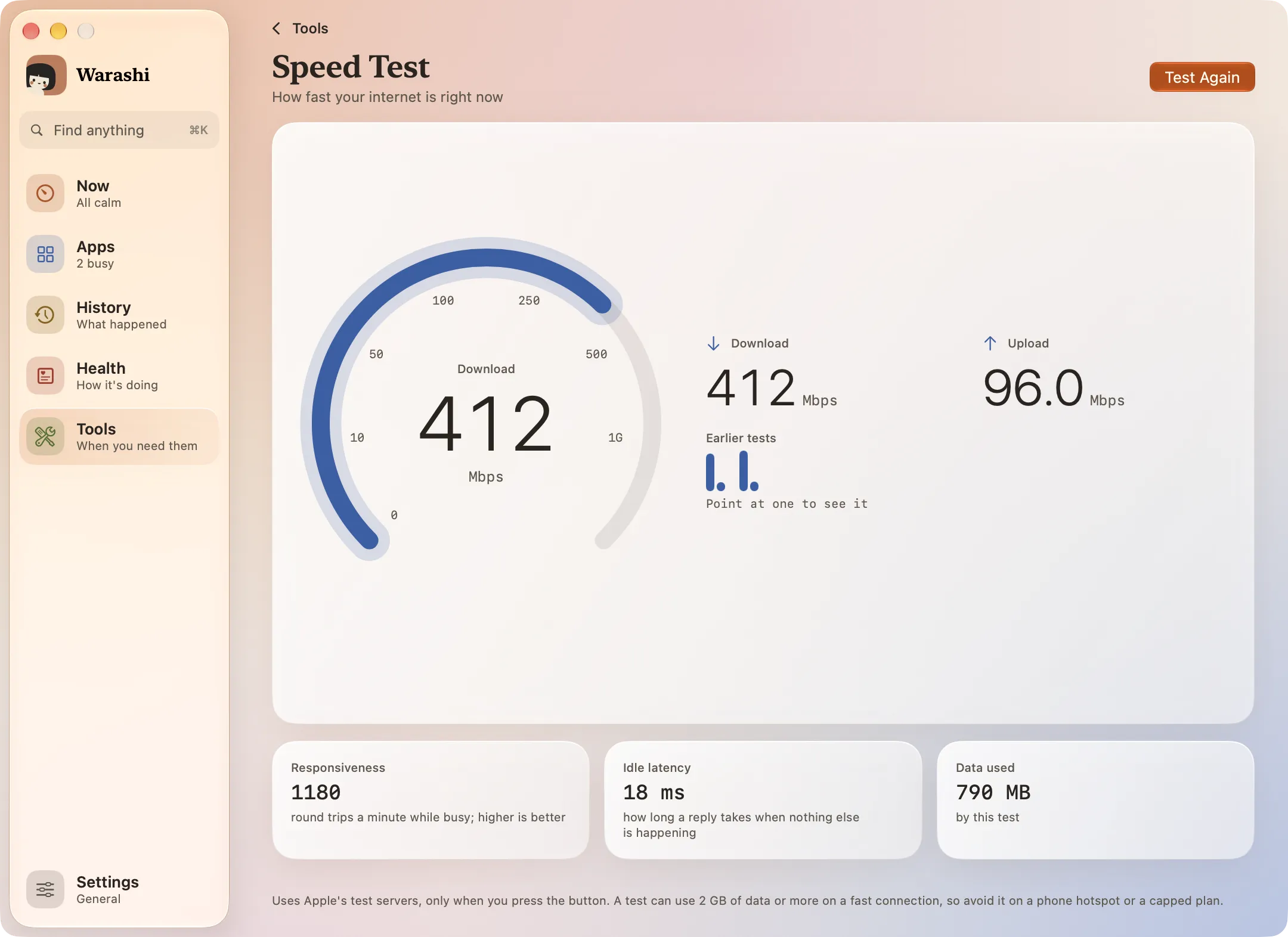
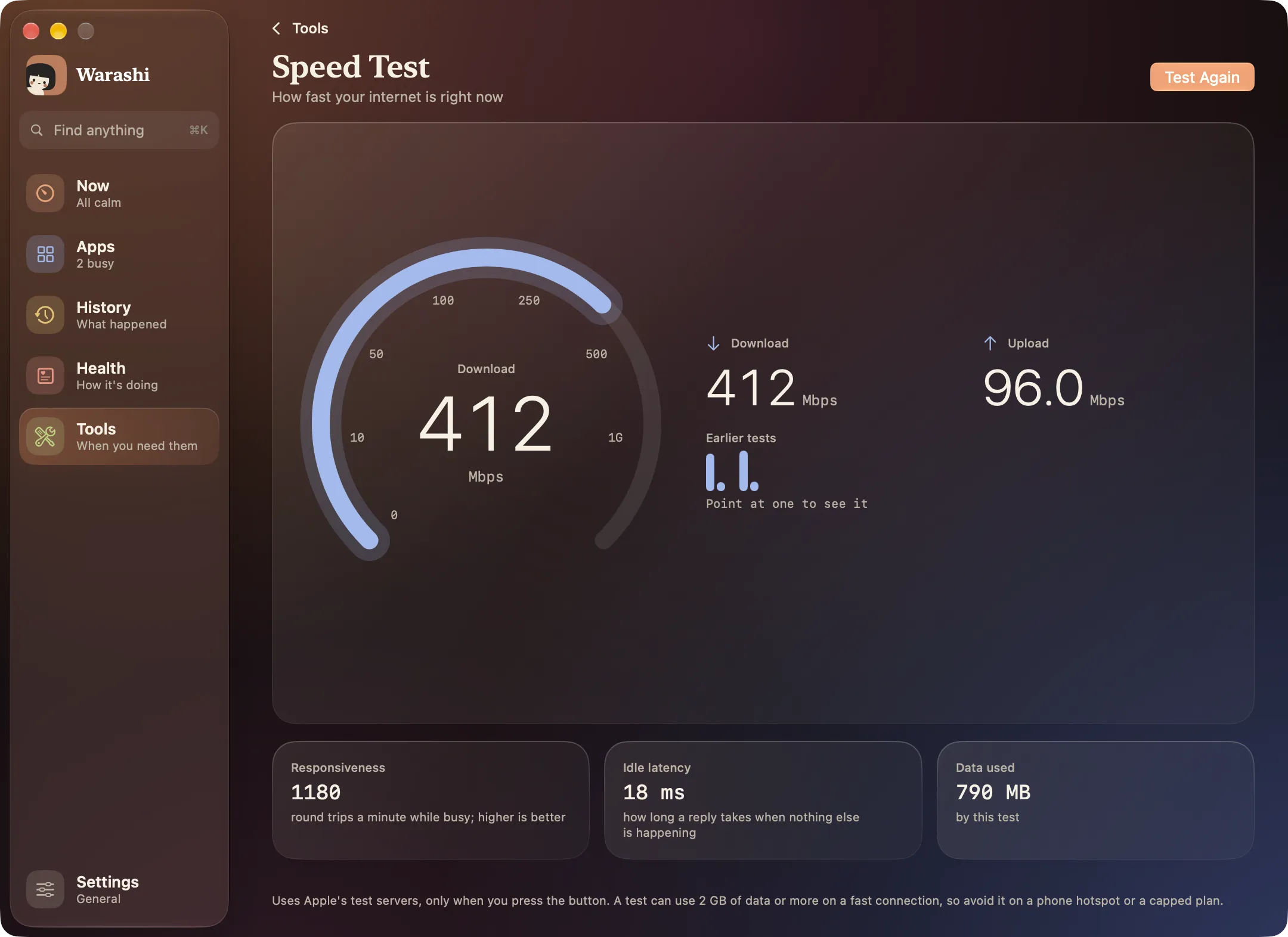
- Press Start Test
The dial shows your speed live, first download and then upload, and the graph beside it draws the test so far. It usually takes under 40 seconds. Press Cancel to stop.
- Go and do something else
You can leave the page, or even close the window, while it runs. Tools in the sidebar shows how it's going and when it's done. Quitting Warashi stops the test.
- Read the result
Download and Upload are your speeds. Responsiveness is how many round trips your connection manages in a minute while it's busy: higher is better. Idle latency is how long a reply takes when nothing else is going on. These final figures are Apple's.
If something's not right
- The test didn't finish: check that you're online and try again. A VPN can lower the result.
More in Troubleshooting, or email adam@warashi.app.