 Warashi
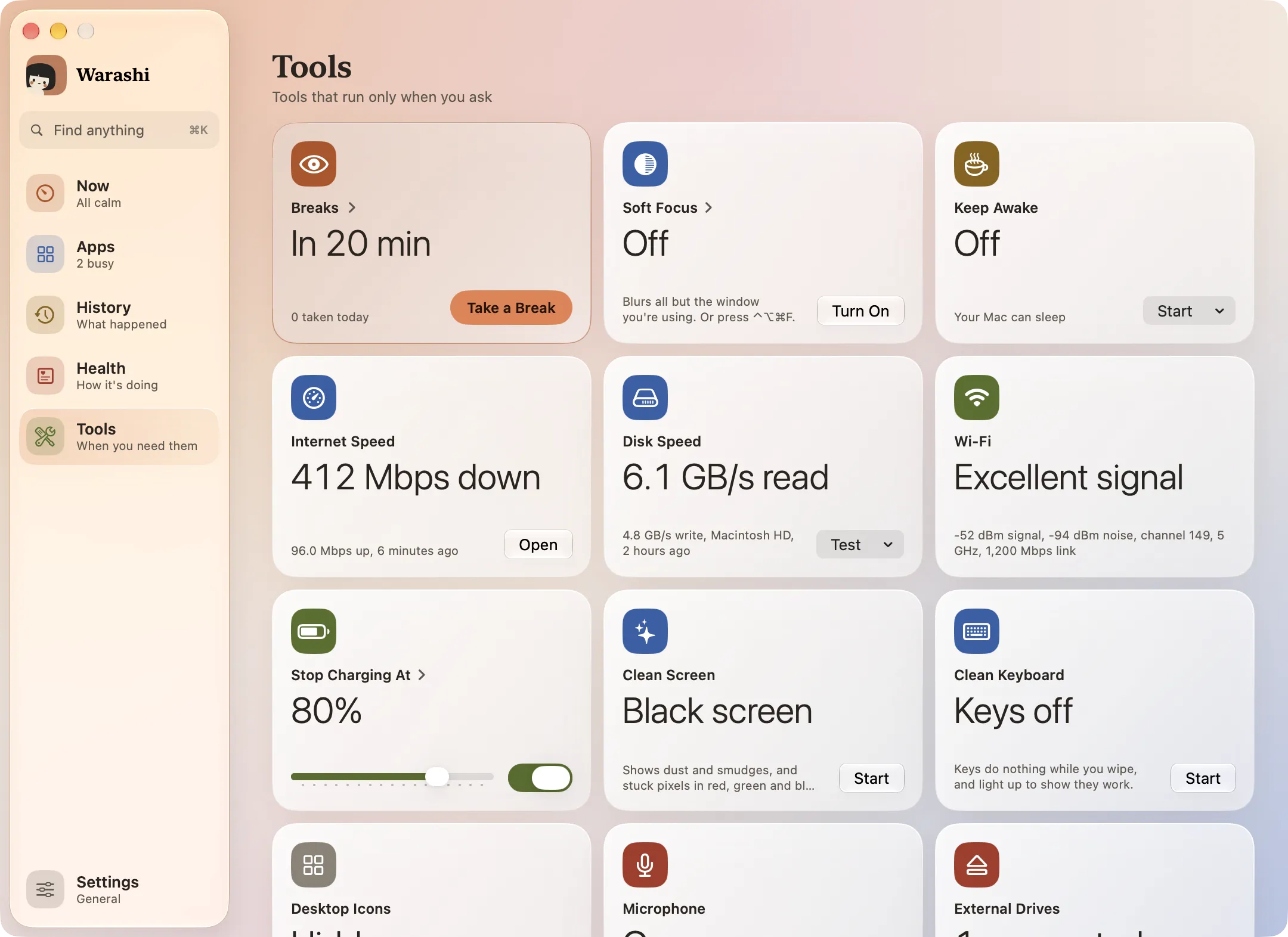
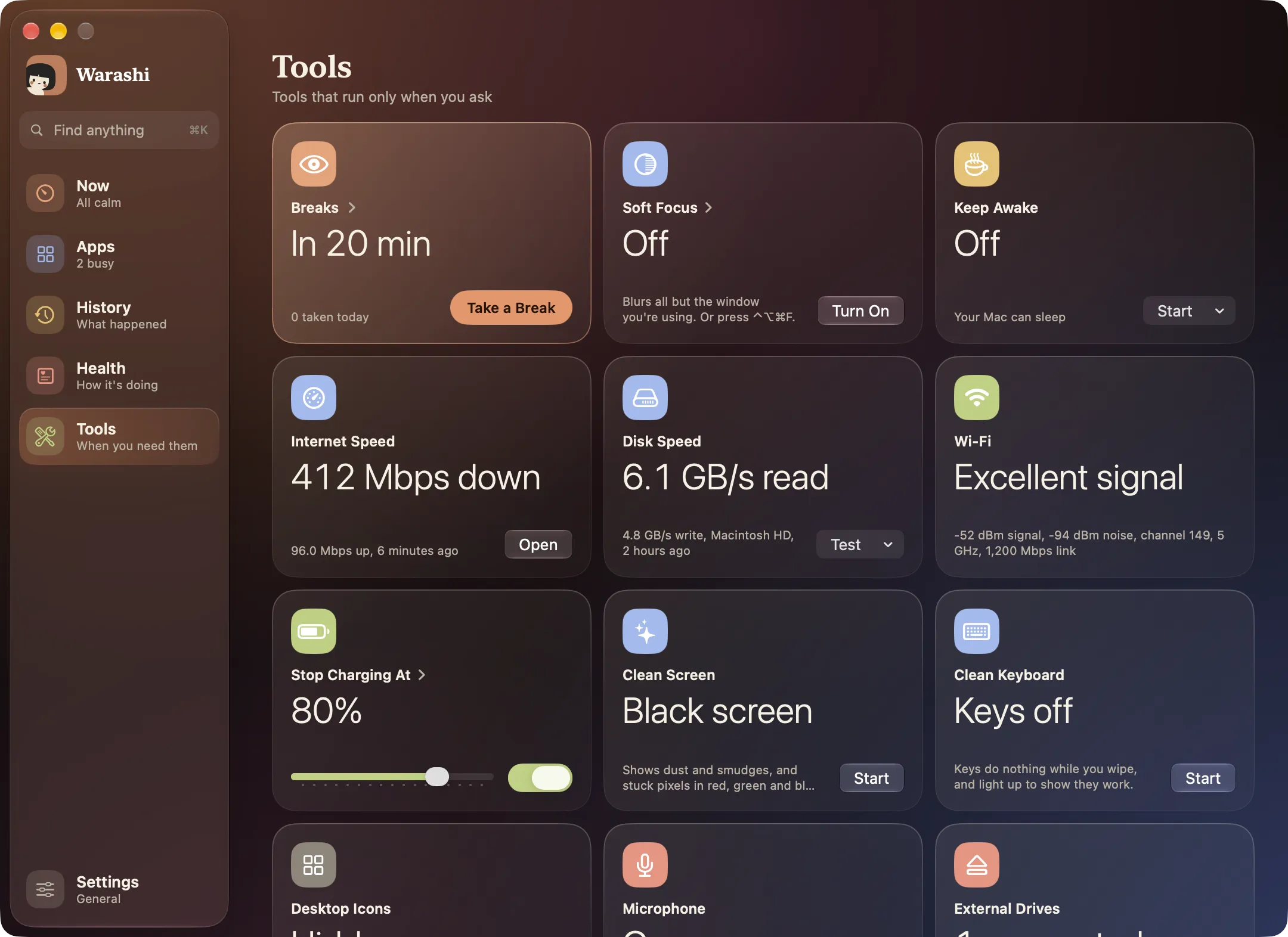
Tools (⌘5) is a toolbox of small things you sometimes need. Each runs only when you ask.
| Tool | What it does |
|---|---|
| Breaks | Shows when your next break is, and Take a Break starts one now. Click the card to set up your rhythm. See Breaks. |
| Soft Focus | Turn On blurs every window except the one you're working in. Click the card for its settings. See Soft Focus. |
| Keep Awake | Start keeps your Mac awake for a time, until a task finishes or while an app is open. See Keep Awake. |
| Internet Speed | Your last download and upload speeds. Open goes to Speed Test. |
| Disk Speed | Test measures how fast your disk reads and writes, in about six seconds. With external drives connected, choose which one. |
| Wi-Fi | How good your Wi-Fi signal is right now, from Excellent to Poor, with the signal, noise, channel, band and link speed. |
| Stop Charging At | The charge limit, on Macs with a battery. Click the card, away from its slider and switch, to open Battery. |
| Clean Screen | Start turns every display black, so dust and smudges show. Switch to white, red, green or blue to spot stuck pixels. Press Esc to finish. |
| Clean Keyboard | Start dims the screen and switches every key off while you wipe. It also tests the keyboard: each key on the drawing lights up once it works, so a dead or sticky key stands out. Hold Esc for two seconds, or press and hold Hold to Finish, to end it. |
| Desktop Icons | Hide clears the files and folders off your desktop, for a screen share or a tidy screenshot; Show brings them back. Nothing moves: it's macOS's own Show items on desktop setting, so it stays as you left it after Warashi quits. |
| Microphone | Mute silences the microphone your Mac is using, for every app at once, until you press Unmute. Warashi only flips macOS's mute switch: it never listens. A microphone without a mute switch shows Unavailable. |
| External Drives | How many are connected. Eject All ejects every one; if macOS refuses because one is in use, it says which. |
| Trash | How much is in the Trash, kept up to date while Tools is open. Open shows it in Finder; to empty it, use the Trash card in Storage. |
| Mac Report | Copy puts a short summary on your clipboard, ready to paste into a support chat: Mac model and chip, macOS, last restart, memory, CPU, heat, disk and SSD life, battery health and cycles, and the Warashi version. Nothing personal: no names, apps, paths, serial numbers or history. |
About the disk speed test
It writes a test file for about three seconds, then reads it back for about three seconds, bypassing the cache so you see the disk's real speed. The file is deleted straight away, so nothing is left behind. The drive needs at least 9 GB free. Only your last result is kept.
About Clean Screen and Clean Keyboard
Both cover every display and turn off ⌘Tab, Force Quit and the Dock while they run, with no permission needed. Volume, brightness and media keys, Touch ID and the power button still reach macOS. Each ends by itself after two minutes, or when your Mac sleeps or locks. They're also in the menu bar window's ⋯ menu and in Find anything.
With Siri and Shortcuts
Ask Siri, or type in Spotlight, without setting anything up. Each phrase names Warashi:
| Say | What happens |
|---|---|
| “Get CPU from Warashi” | Siri reads out a live reading: CPU, memory, GPU, power, temperature, network, disk or battery. |
| “Keep my Mac awake with Warashi” | Keep Awake starts until you turn it off. “Let my Mac sleep with Warashi” ends it. |
| “Hide desktop icons with Warashi” | Hides them; “Show desktop icons with Warashi” brings them back. |
| “Mute my microphone with Warashi” | Mutes it for every app; “Unmute my microphone with Warashi” turns it back on. |
| “Charge to full with Warashi” | Charges to 100% this once; “Set the charge limit in Warashi” asks for a new limit. |
The same actions are in the Shortcuts app, under Warashi, to build into your own shortcuts.
About Wi-Fi
Wi-Fi is read every two seconds, only while Tools is open. Warashi doesn't show your network's name, so it never needs Location access.